Walkthrough · admins
The admin side of Marginalia
A guided walkthrough of Marginalia's admin side: sign-in and SSO, path translation, offline metadata databases, webhook routing, the request queue, collection gaps, background jobs, backups and health.
The starting point:
If you are running from the binary, you need to point it at the Kavita database once.
./Marginalia --kavita-db /path/to/your/kavita.dbThat is the install. The path is saved after the first run and you can remove the command-line argument. The first admin to sign in gets a setup wizard; everyone else waits on a "setup in progress" page until it is done.
When you are running in Docker, the compose mounts the database read-only and passes the path in automatically from the environment strings.
Marginalia never writes to Kavita. The database is opened read-only at the SQLite driver level, and the Docker compose mounts it :ro on top of that. There are no schema changes to roll back if you delete the app.
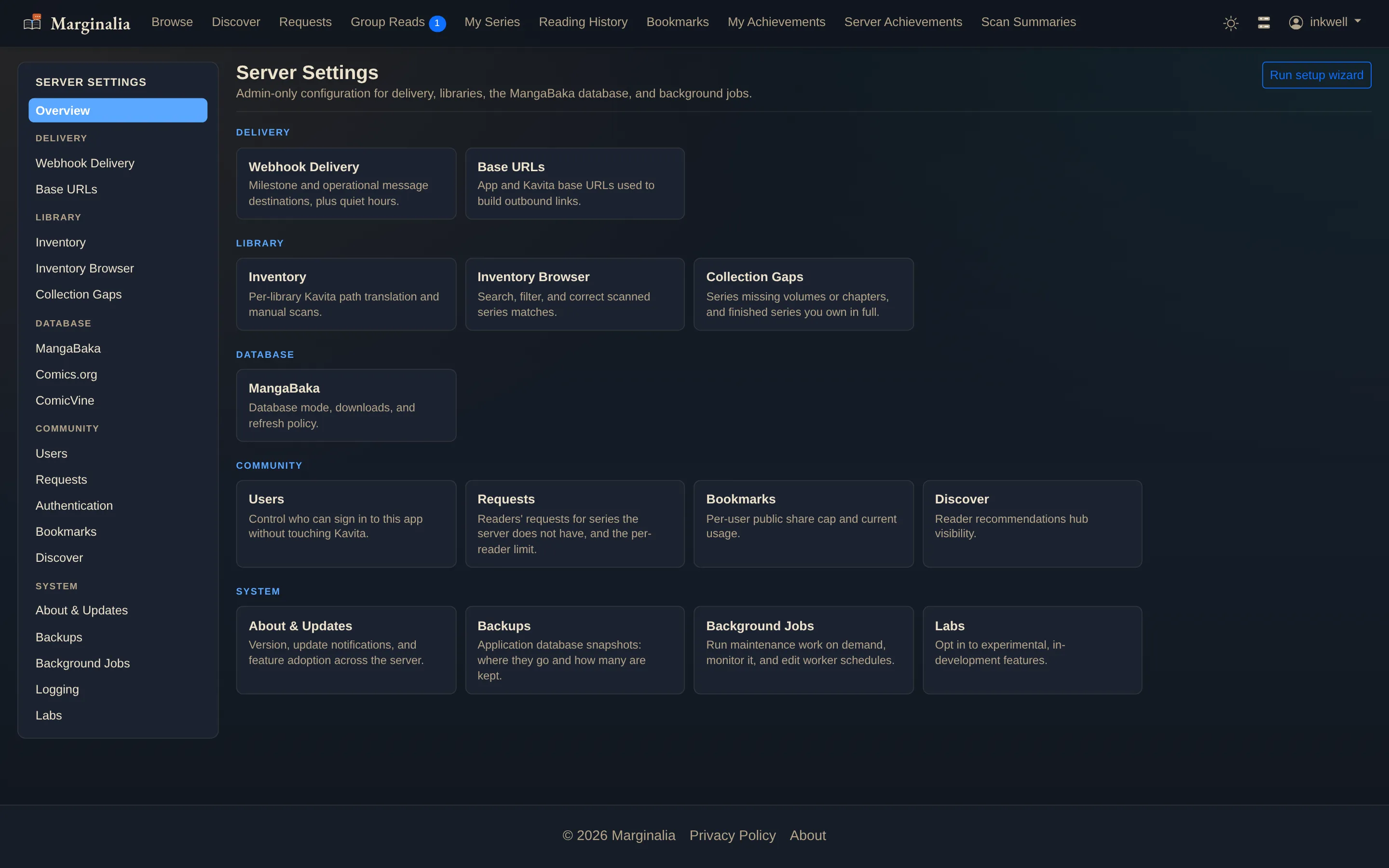
1. The map
The admin area is grouped by what you are trying to do rather than by which subsystem owns the setting — delivery, library, database, community, system.
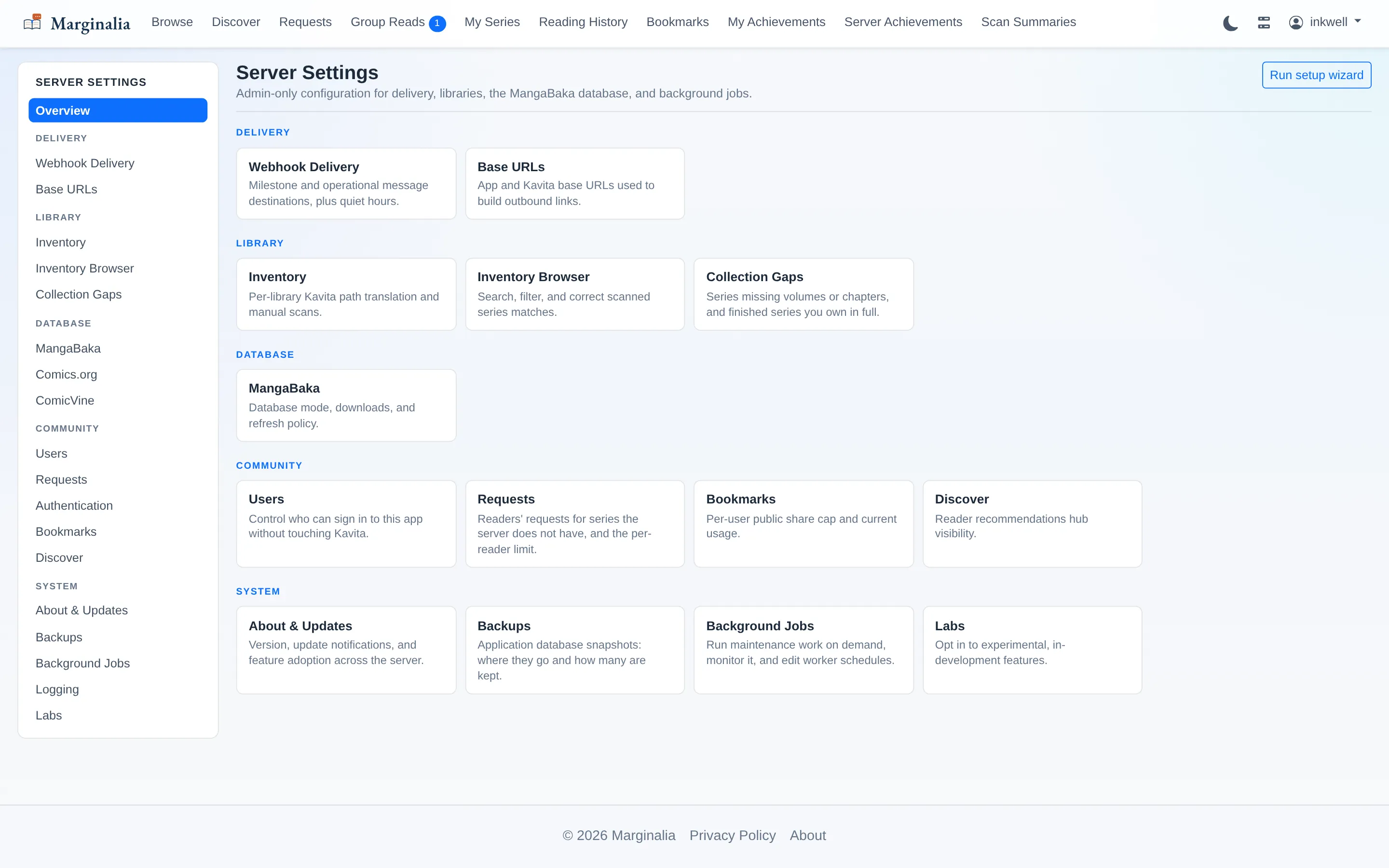
2. Who can sign in
Everyone in Kavita's user table can already sign in — there is nothing to provision. This page is for taking that away: blocking an account from Marginalia without touching their Kavita access.
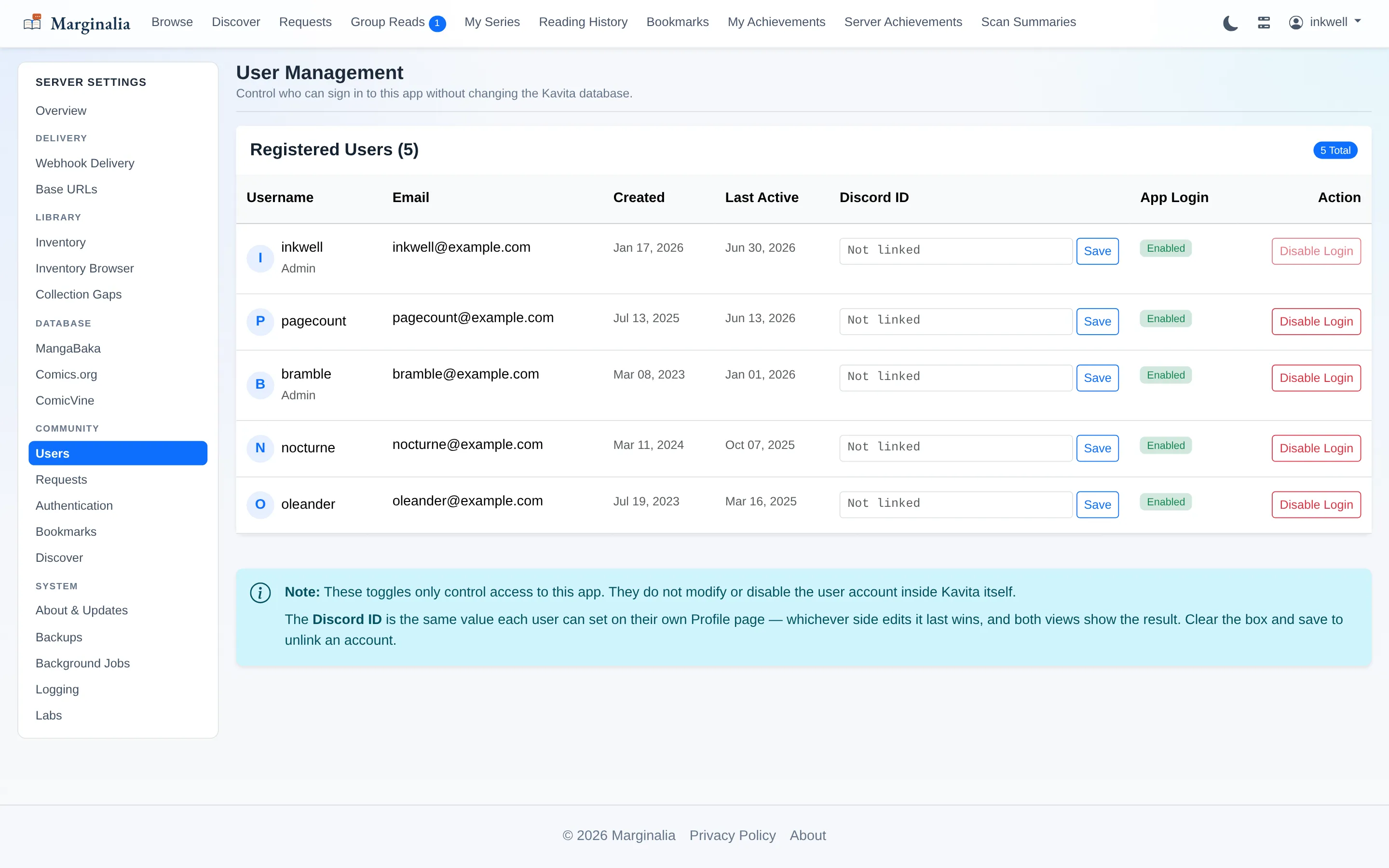
If Kavita hands authentication to an identity provider, Marginalia registers as its own OpenID Connect relying party against that same provider — authorization code plus PKCE. Fill in authority, client id and secret, and it applies immediately with no restart.
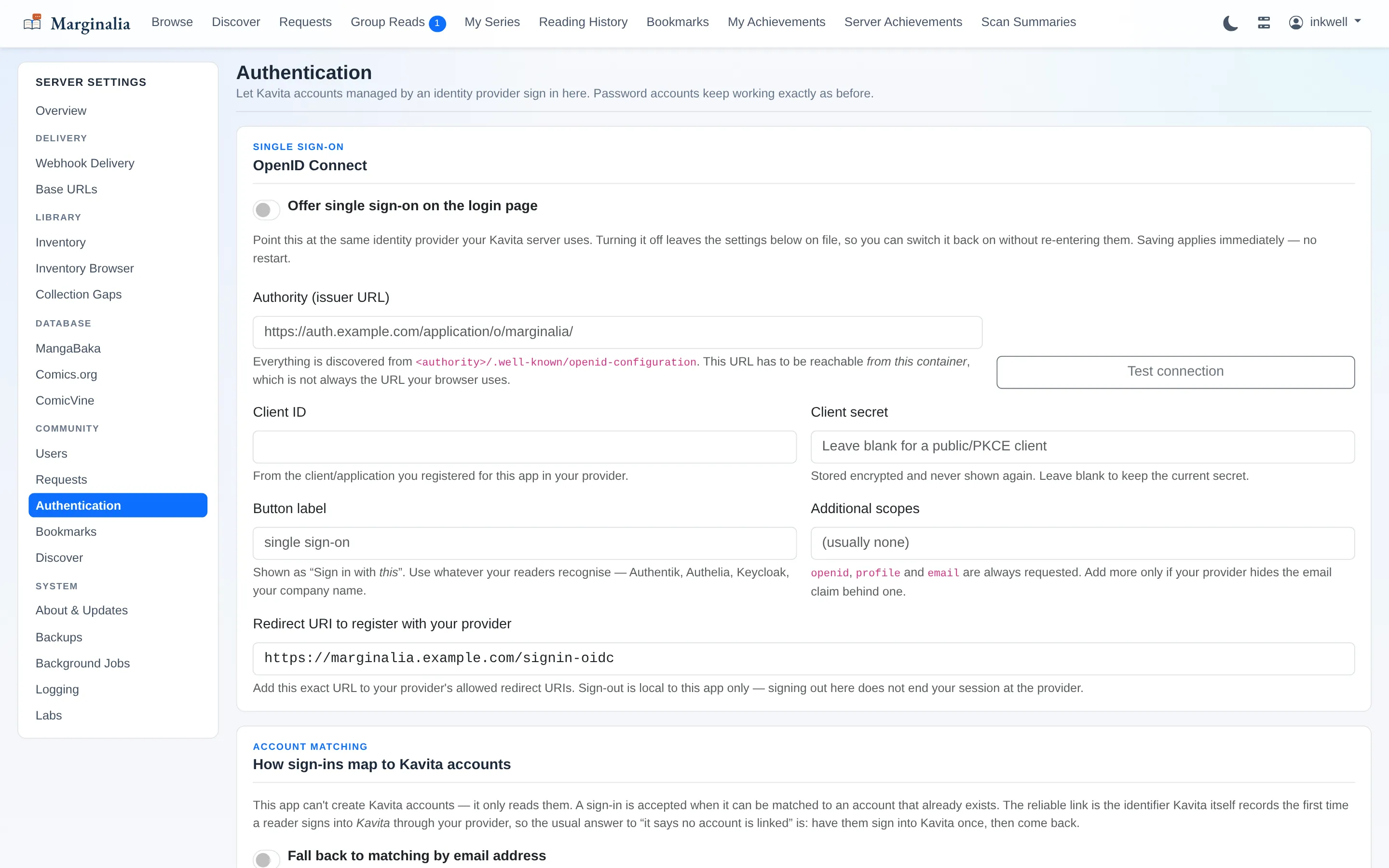
Why email matching ships off: the reliable link is the sub claim against the OidcId Kavita records the first time someone signs into Kavitathrough the provider. An email-match fallback exists, but turning it on means anyone who controls an address at the provider can reach the Kavita account holding that address. That is your call to make deliberately, not a default.
3. Pointing to where the files are
This is the one that bites people. Kavita stores library paths the way Kavita sees them, so a library reads as /comics while the files actually live at/mnt/storage/comics on the host. The classic case is Kavita in Docker with Marginalia on bare metal.
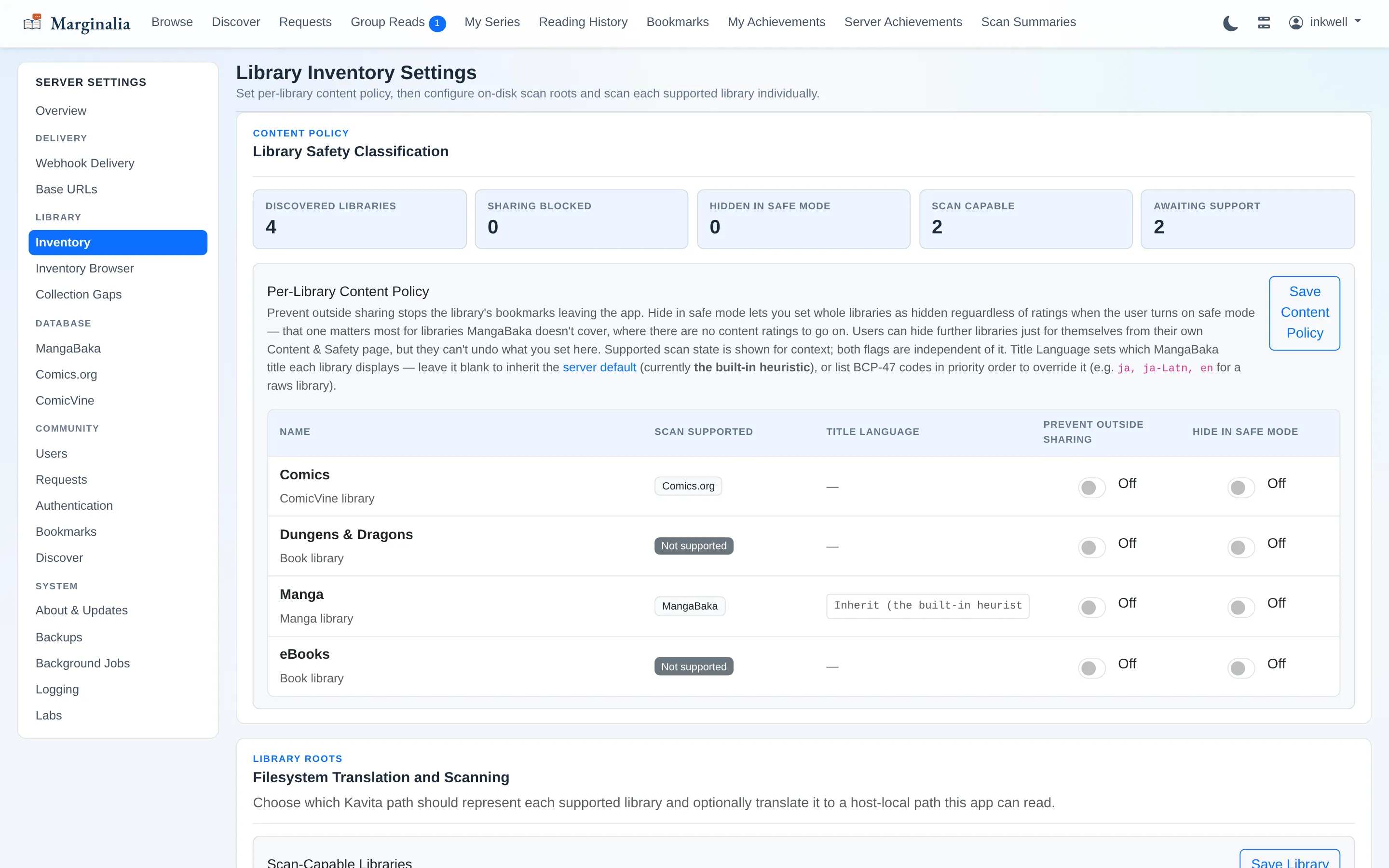
This page also carries the per-library content policy: which libraries can leave the app as shared bookmarks, which are hidden when a reader turns on Safe Mode, and which MangaBaka title language each library displays.
Once a library is scanned, a separate Inventory Browser page is where you search what was discovered and correct how each series was matched against the metadata database — including clearing a bad match, which persists as an admin override until you reset that row back to automatic. Matches stay visible and correctable rather than being hidden once the system is confident about them.
Scope: path translation only affects features that read files off disk. Notifications, history, achievements, browsing and bookmarks all work from the database and do not care where the files physically live.
4. Metadata
Matching tens of thousands of series should not mean tens of thousands of API calls, so Marginalia keeps local copies of the metadata databases and matches against those.
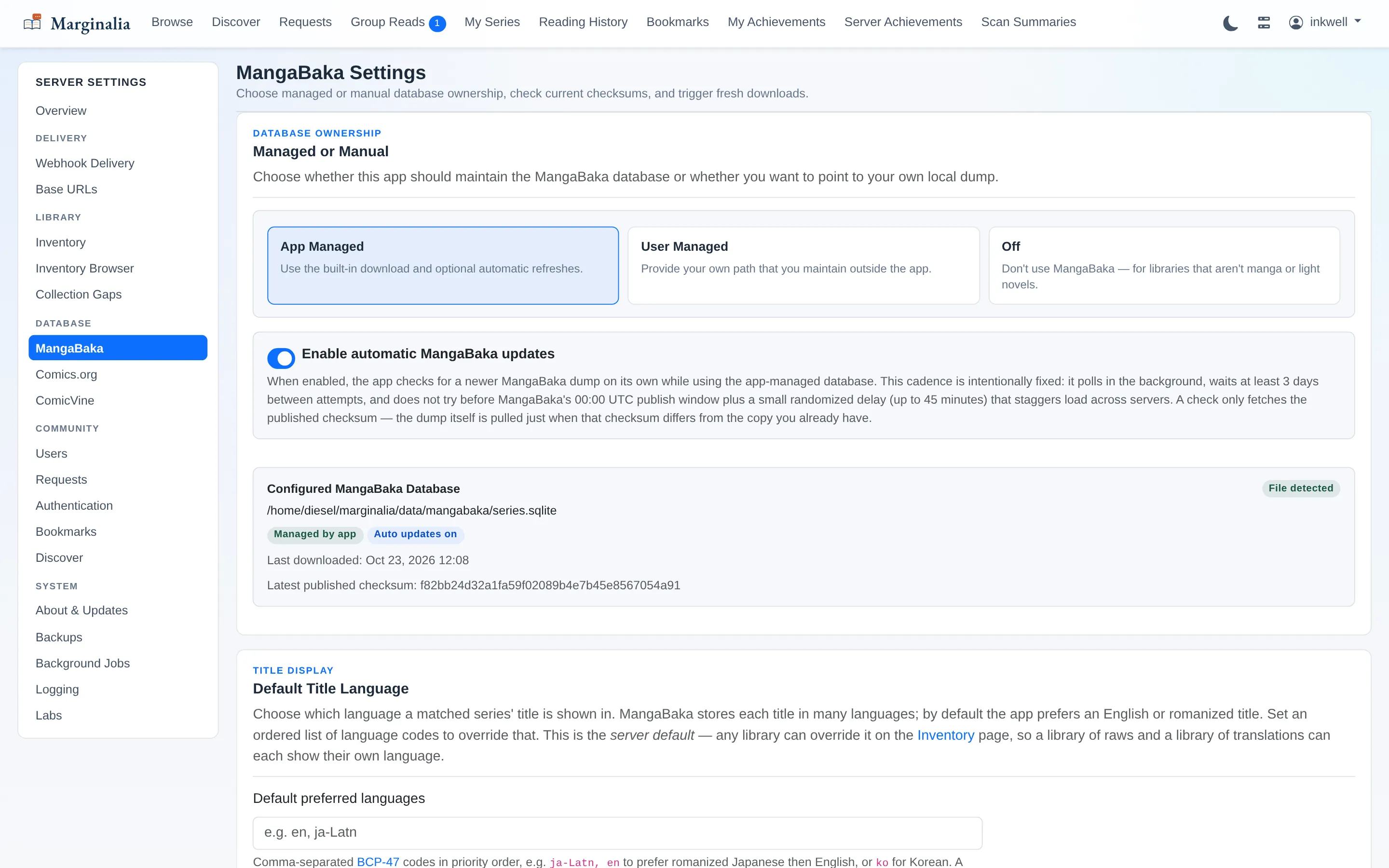
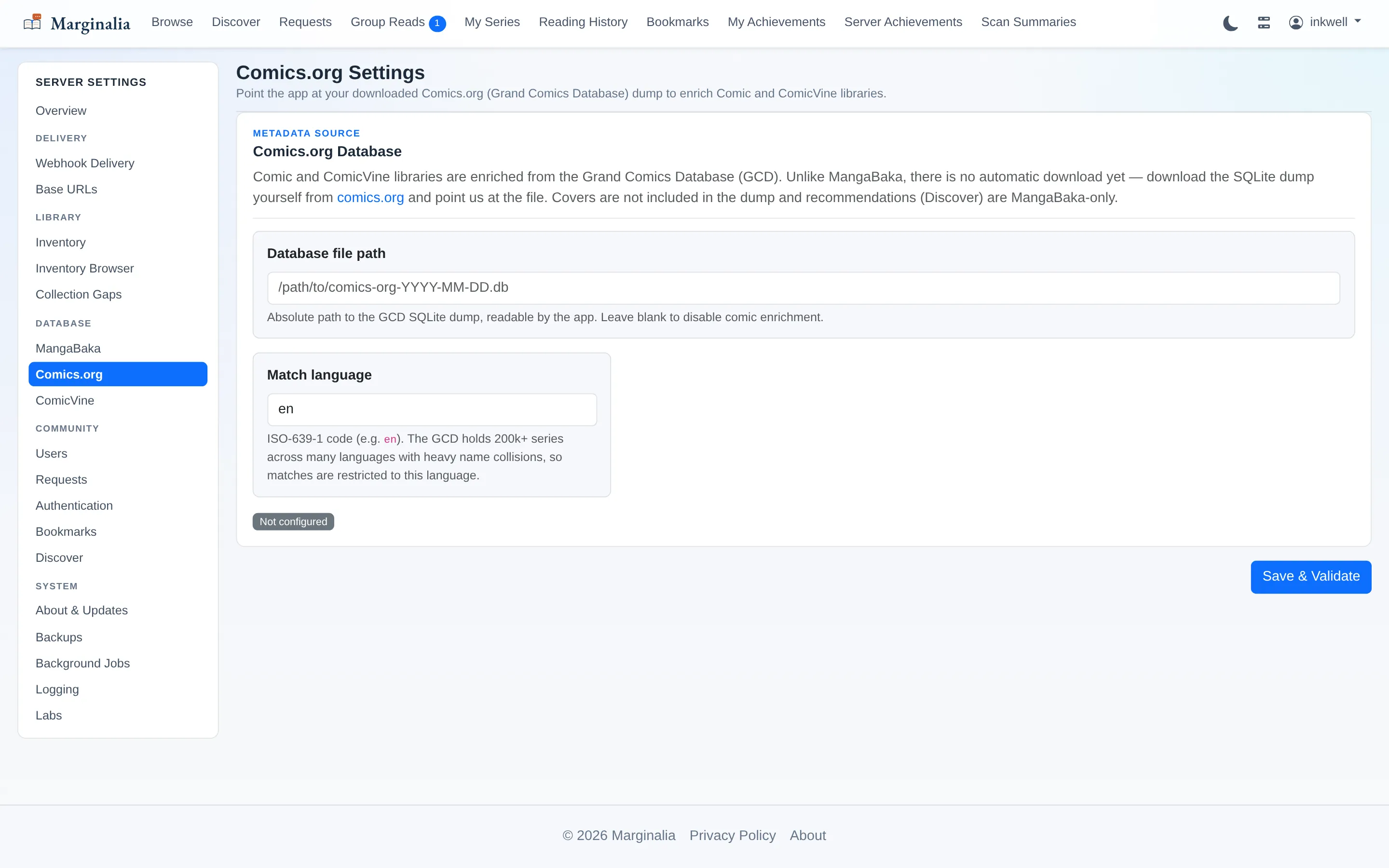
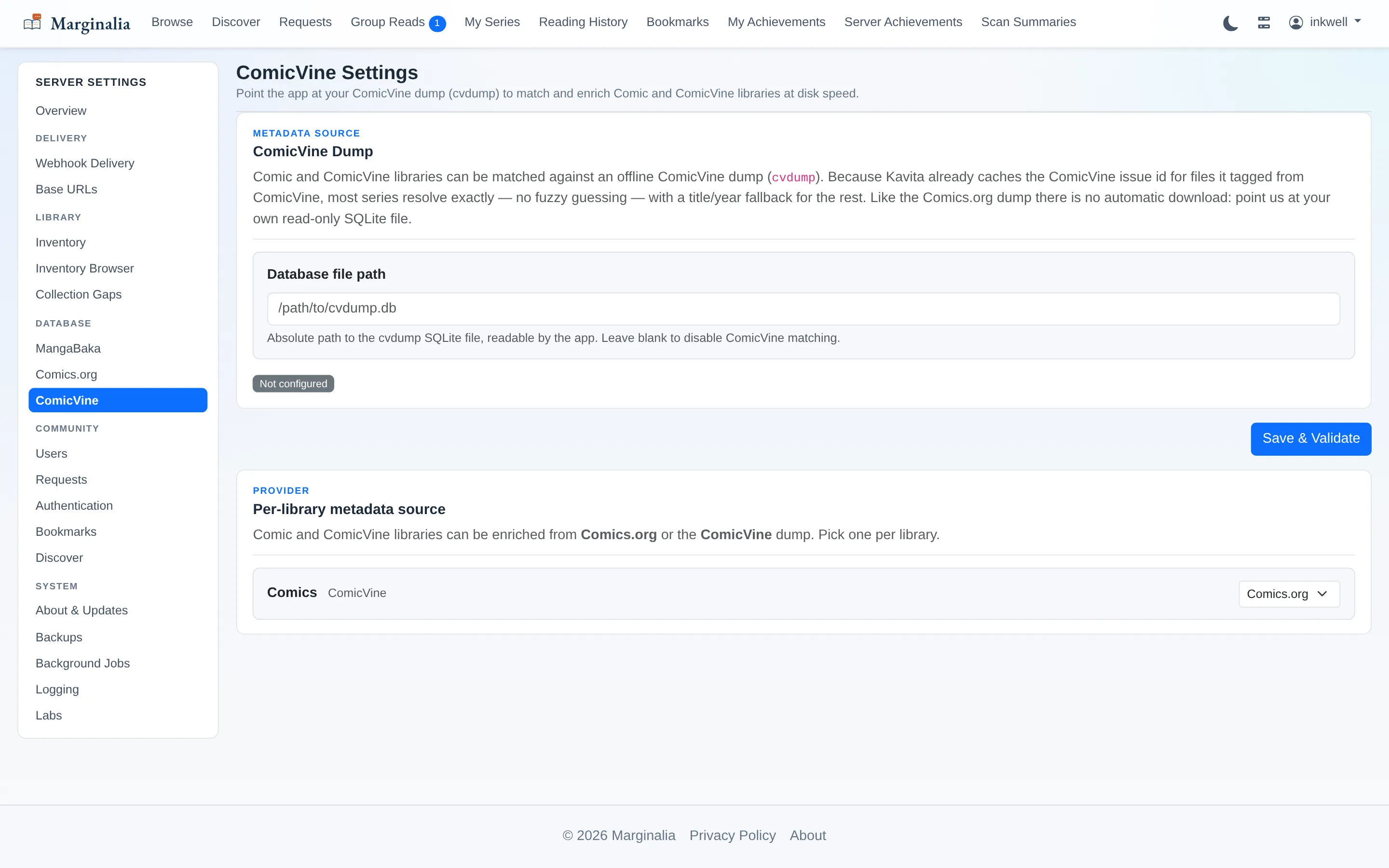
Comic libraries get their own sources, and each library is assigned one active provider — so a manga library and a comics library can match against different databases on the same install.
5. Where Discord messages land
By default every reader's notifications go to their own webhook. A notification group changes that for library-wide announcements: one Discord channel, plus the libraries announced in it, posted once to the channel instead of once per reader who happens to have a webhook pointed there.
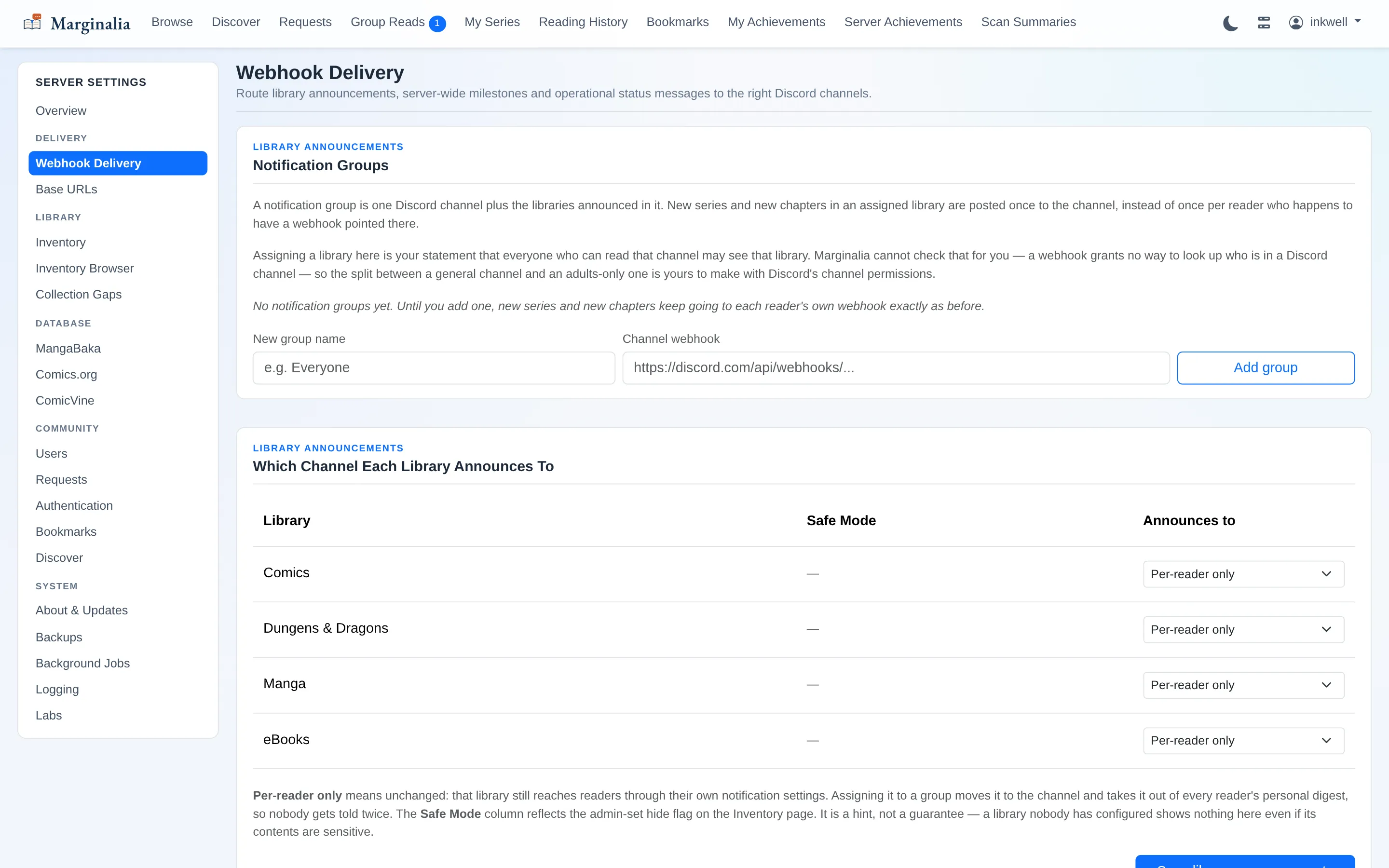
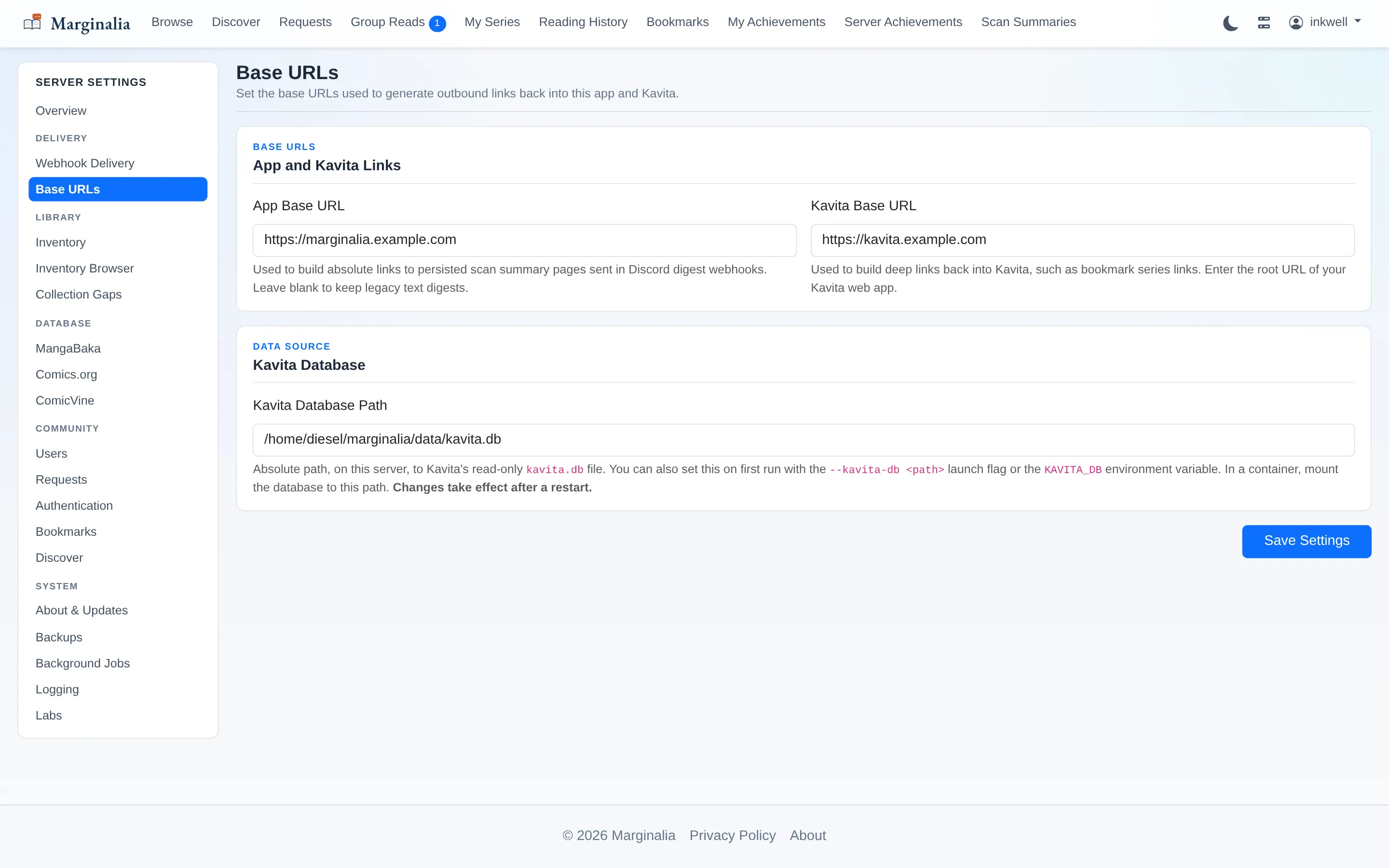
Quiet hours live on this page too, so nothing fires at 3am. Outbound links in those messages need to know what your server is called from outside, which is the one thing worth setting on the base URLs page.
6. Requests and collection gaps
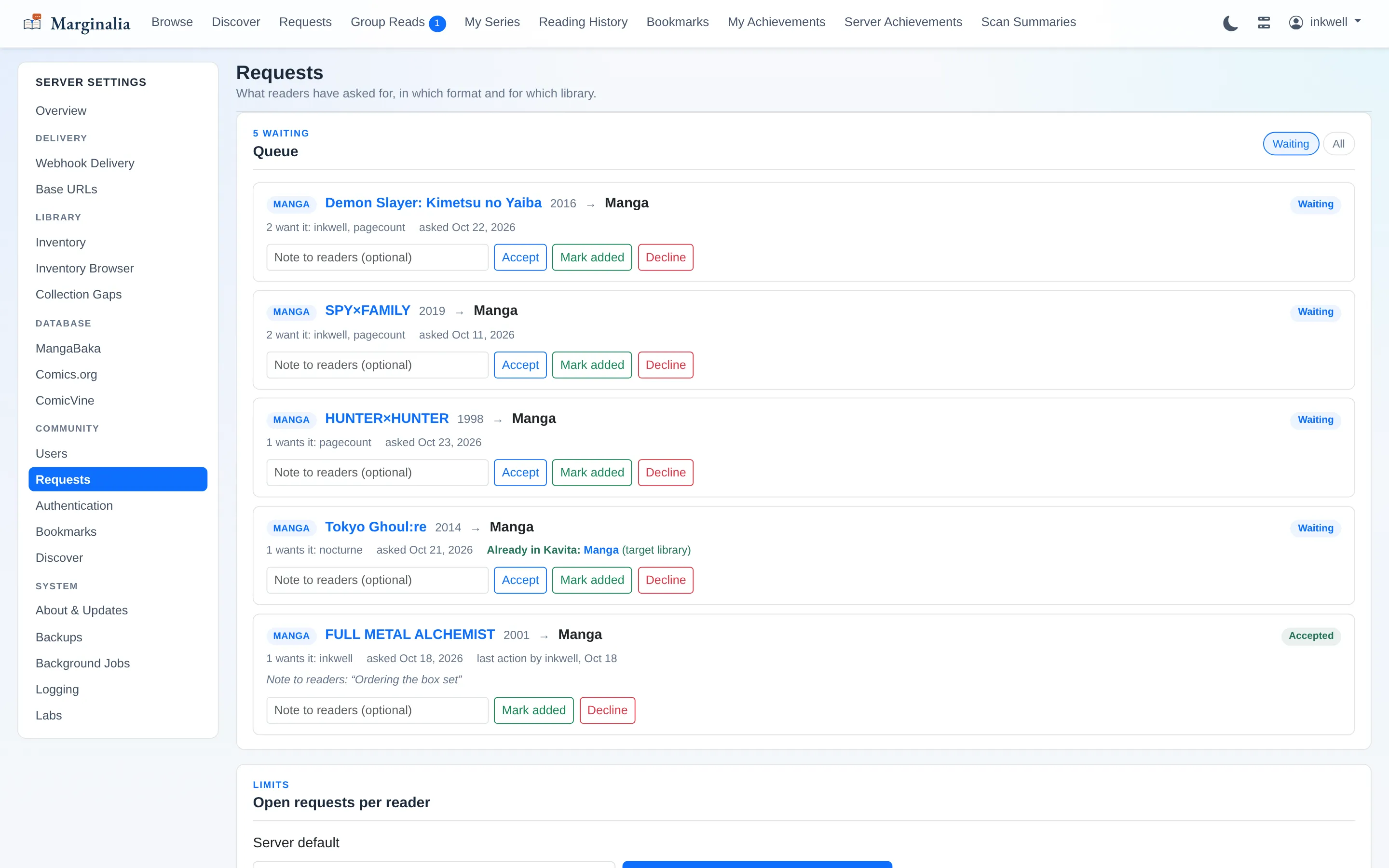
Readers can ask for series the server does not have, and those land in a queue here. Each request is a specific edition aimed at a specific library, with everyone who asked for it listed beside it.
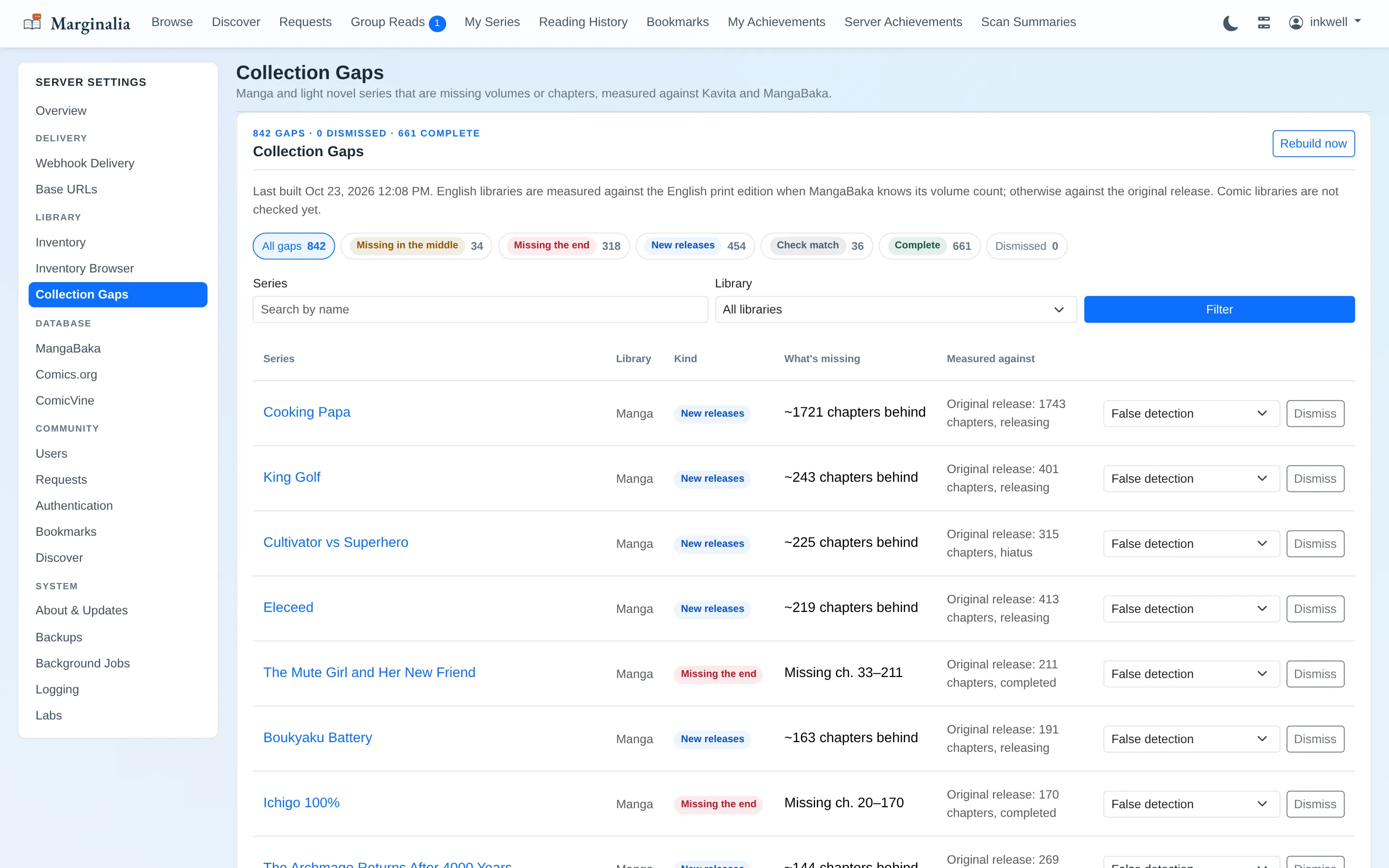
Collection Gaps runs the other way: a nightly check for missing volumes and chapters in series that are already on the server, measured against MangaBaka.
7. Background work
Every background worker is on a cron expression you control, grouped by function, each with an Enabled toggle and a Run now button.
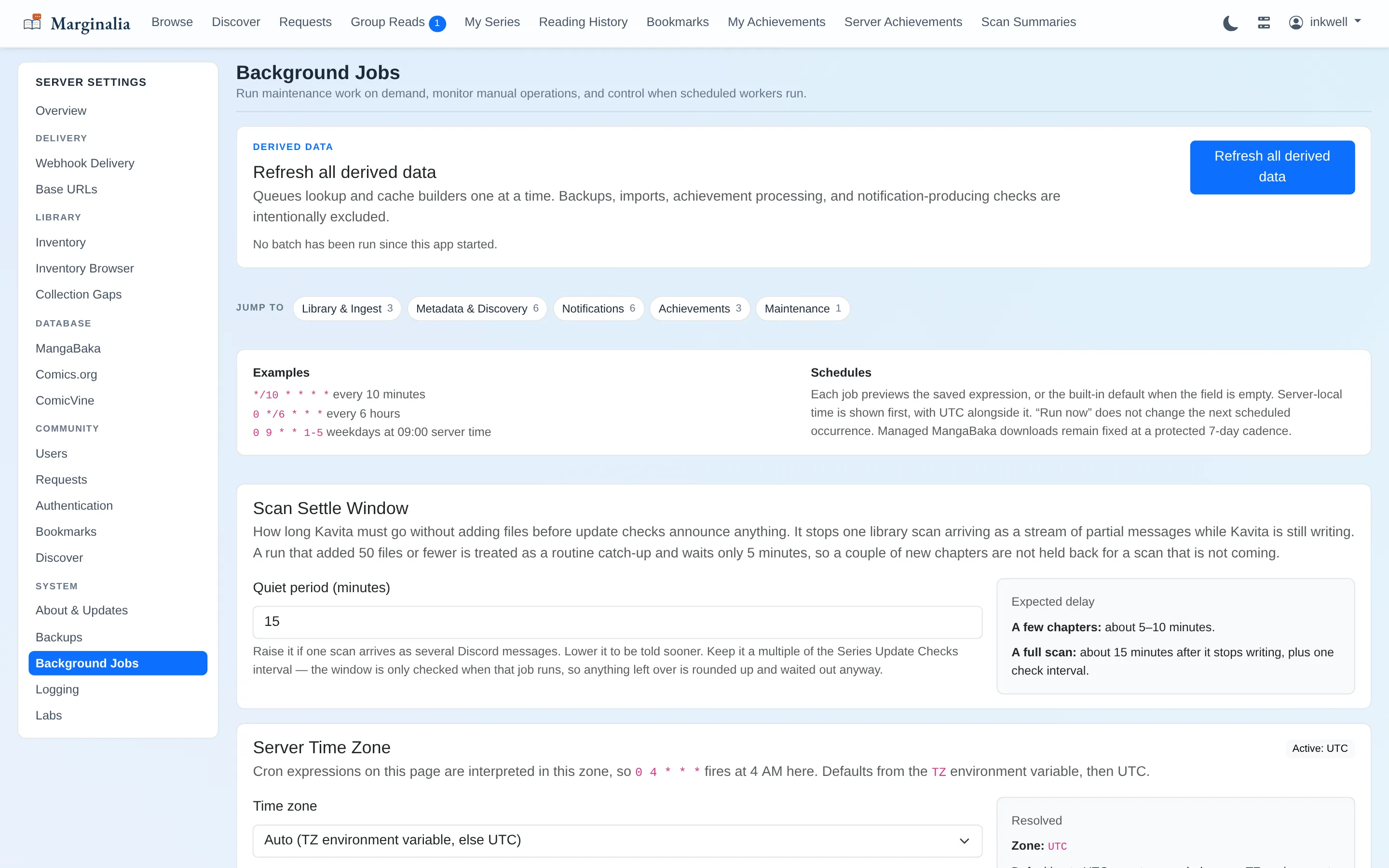
The scan settle window on this page is the setting that stops one Kavita library scan arriving as a stream of partial Discord messages. Marginalia waits for the scan to go quiet before summarising, so one scan produces one summary. A small catch-up run is recognised as such and waits only a few minutes rather than the full window.
8. Backups and the smaller switches
Marginalia's own database is snapshotted on a schedule, verified after writing, and there is a startup integrity gate in front of it.
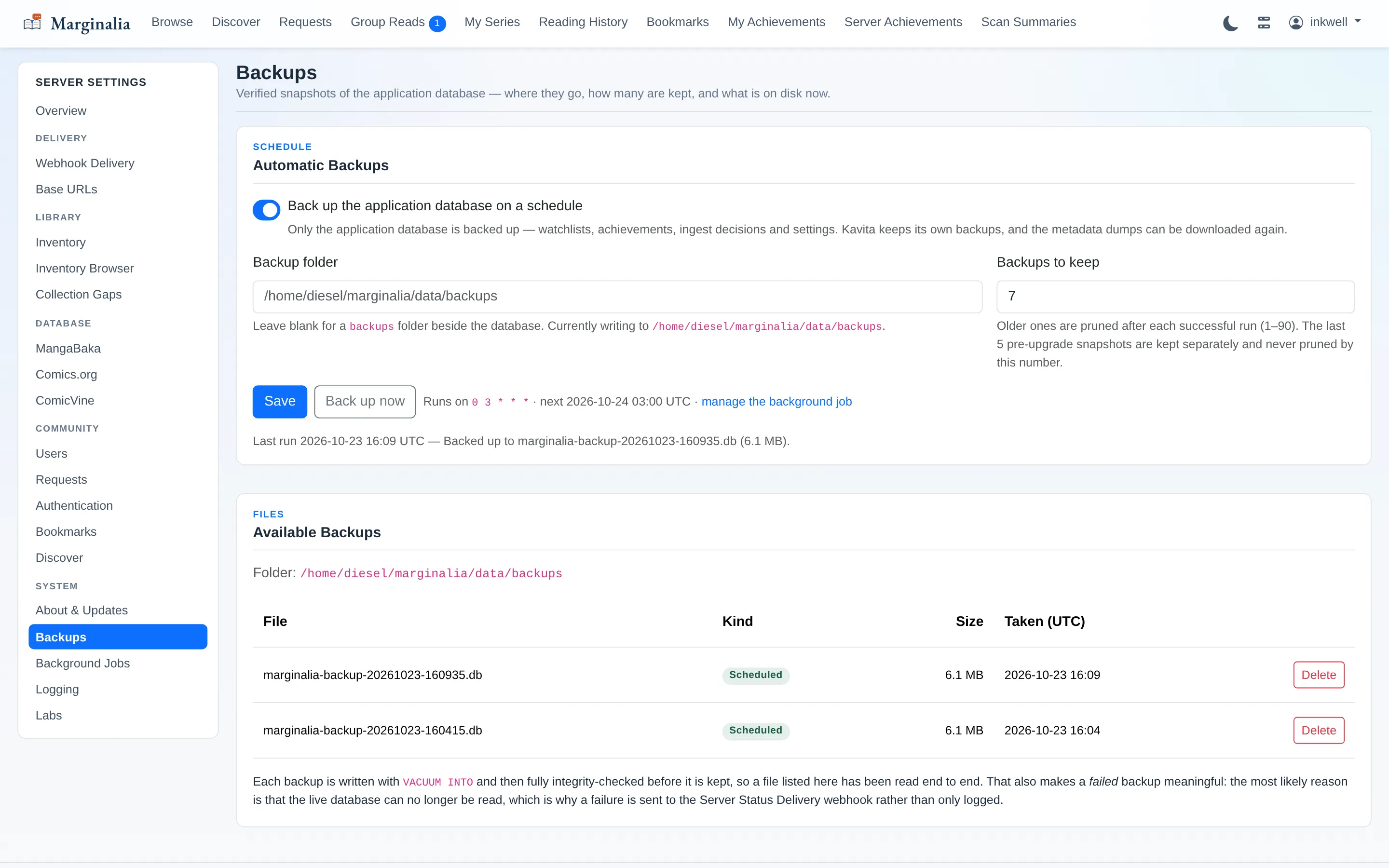
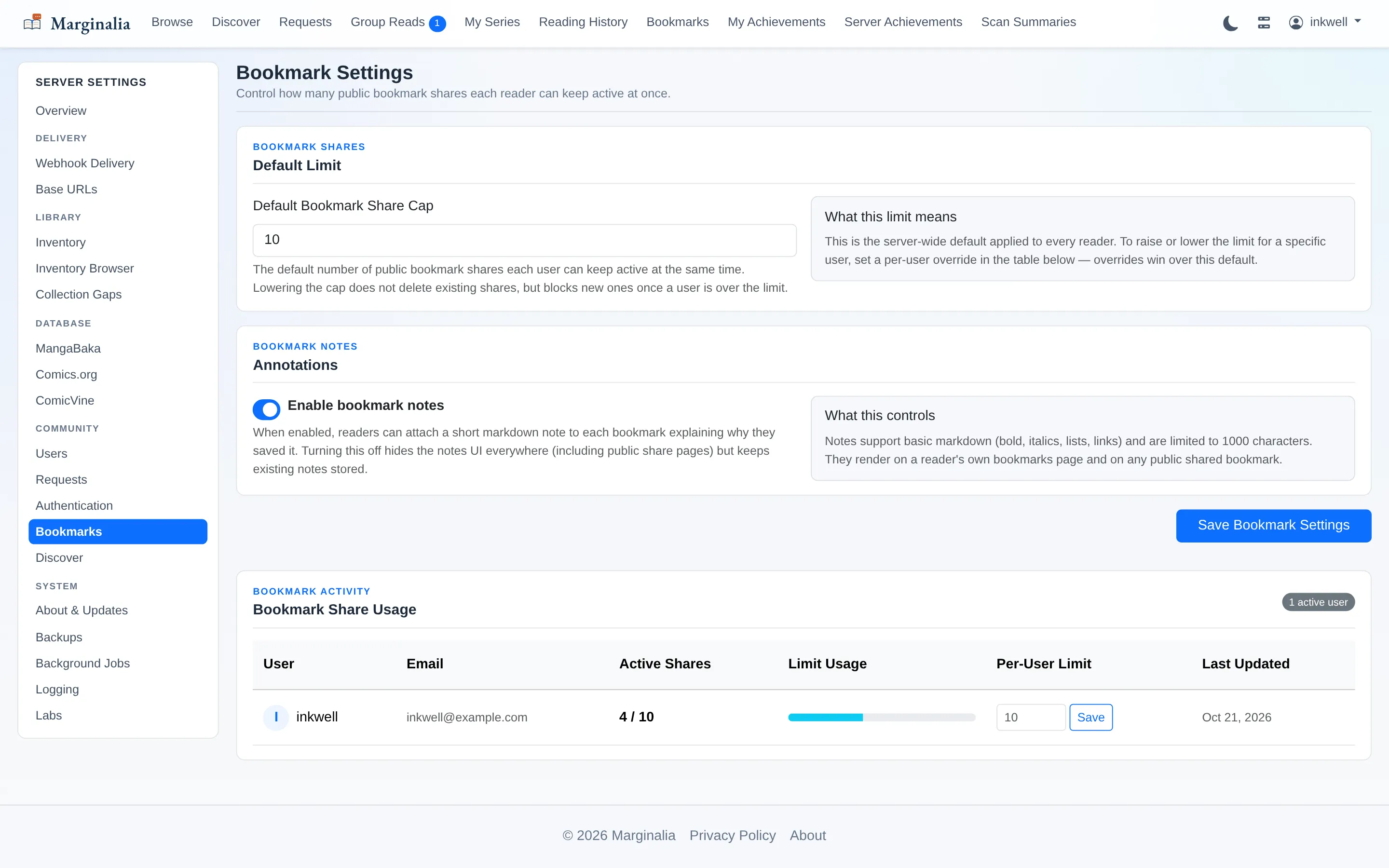
Two community-facing limits are worth knowing about. Bookmarks sets how many pages each reader may publish on a public link:
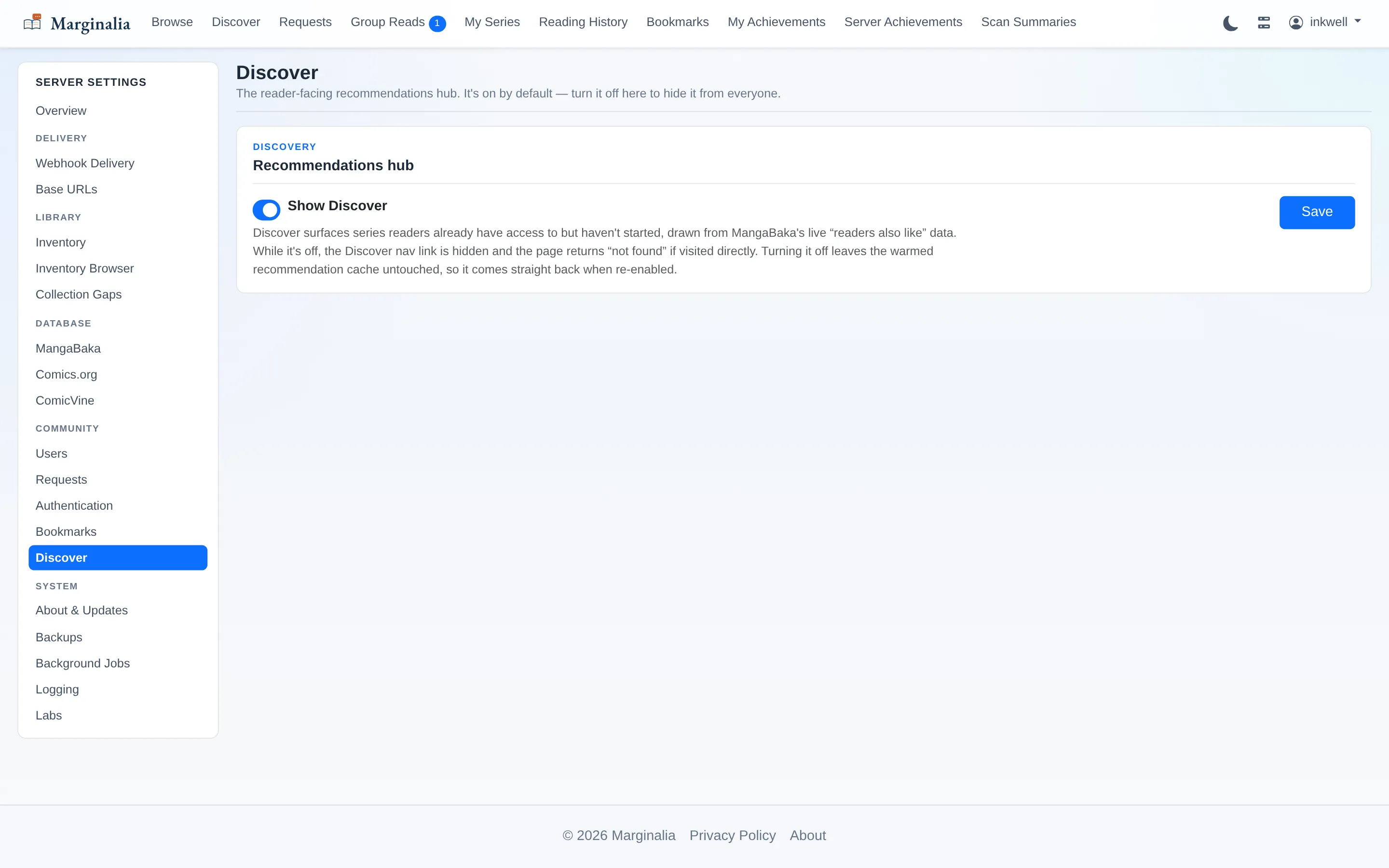
…and Discover can be switched off entirely, which also stops the only outbound requests the app makes on readers' behalf.
9. Knowing when something is wrong
Subsystems report into a central health registry. A critical failure drops the app onto a maintenance page naming what broke, rather than crashing or quietly serving wrong data. There is a machine-readable /health endpoint for Uptime Kuma and friends, plus a status webhook for operational events. The Logging page sets the log level — applied to the running process immediately, no restart — plus how many days of rolled log files to keep, and lets you download any of them, so handing over a log does not start with SSH. Webhook URLs are never written to the logs.
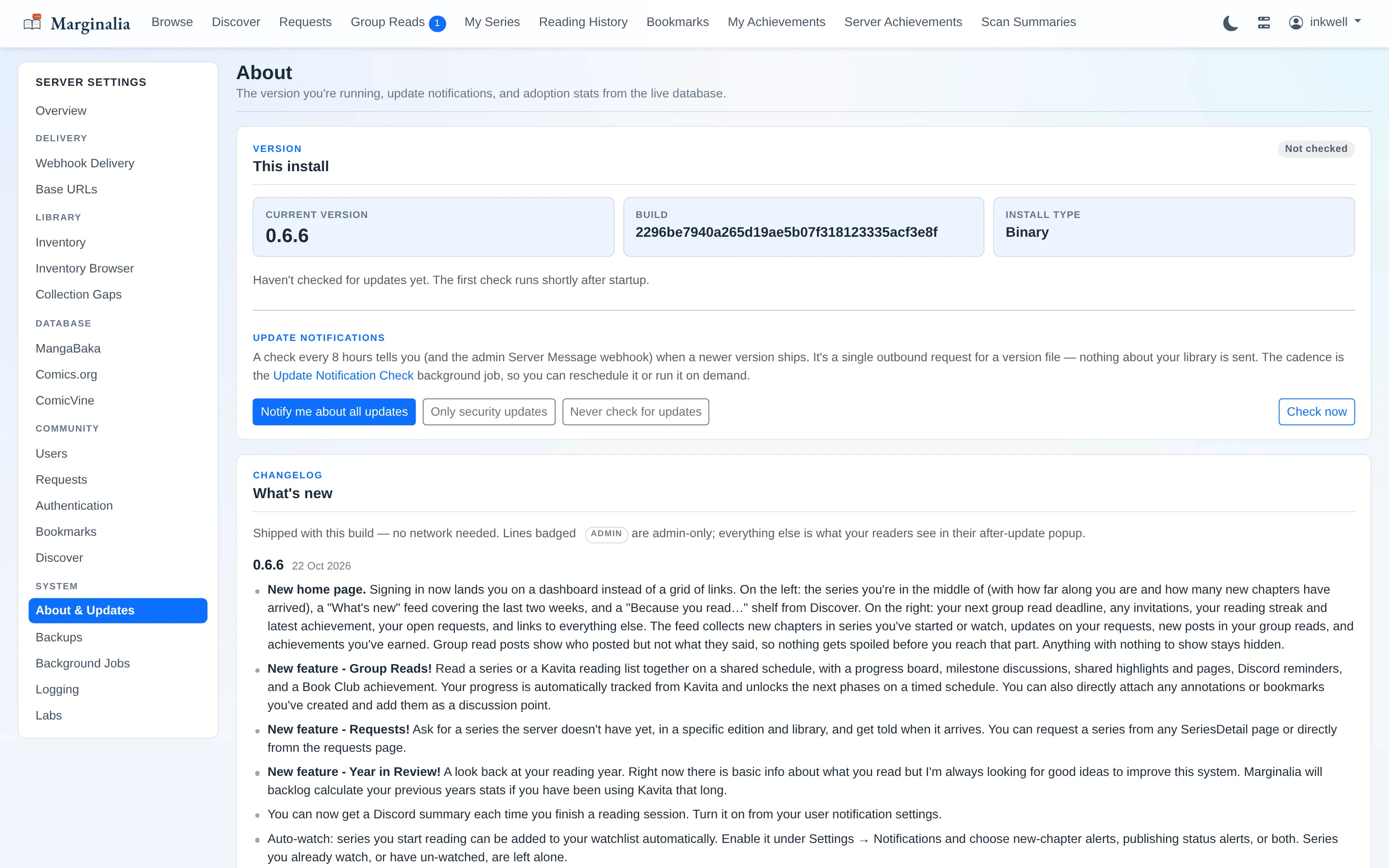
The About page ties it together: the version you are on, whether a newer one exists, the changelog that shipped inside the build, and which features people on this server are actually using.
Dark mode
The admin area is themed from the same tokens as everything else rather than being left as a bright afterthought behind the reader-facing pages.