Walkthrough · readers
Day to day, from first sign-in to the loop the app is built around
Normal user experience, from signing in, finding something, following it, and being told when it moves. Every screen below is what an ordinary account sees.
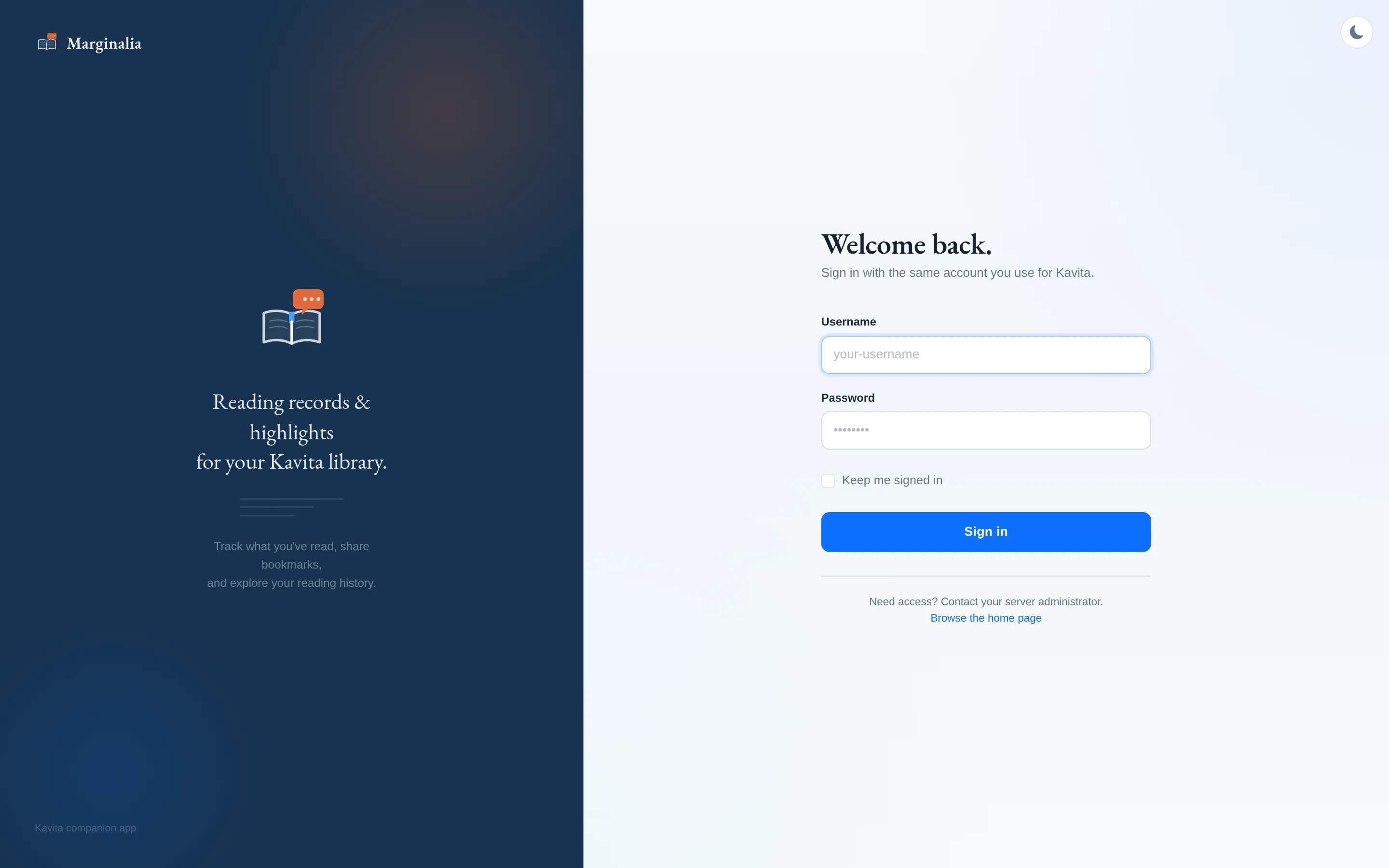
1. Signing in
There is no account to create. Marginalia checks the password against Kavita's own user table, so whatever gets you into Kavita gets you in here on the first try. If your server hands sign-in to an identity provider, a Sign in with … button appears above the password form instead.
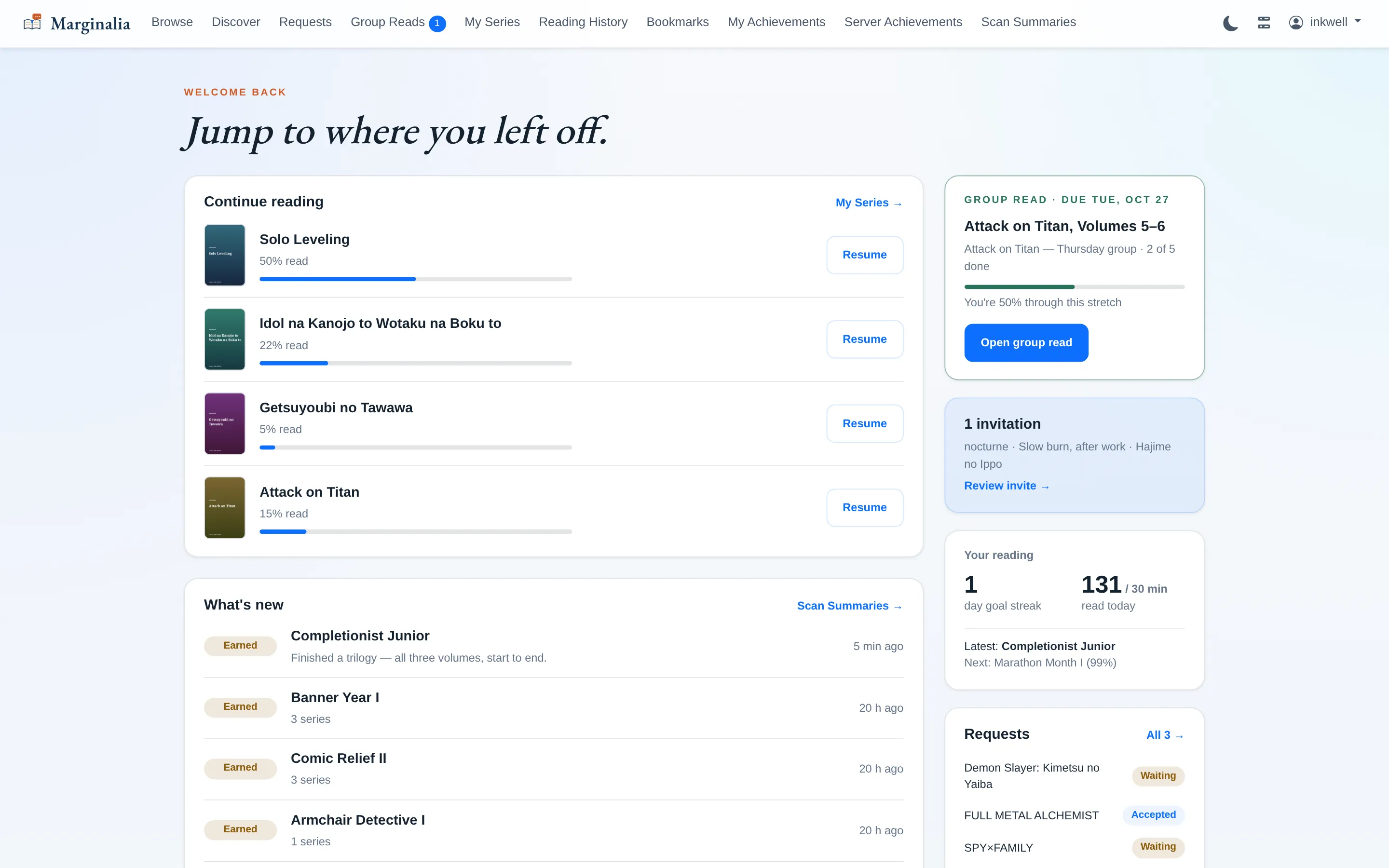
2. The home page
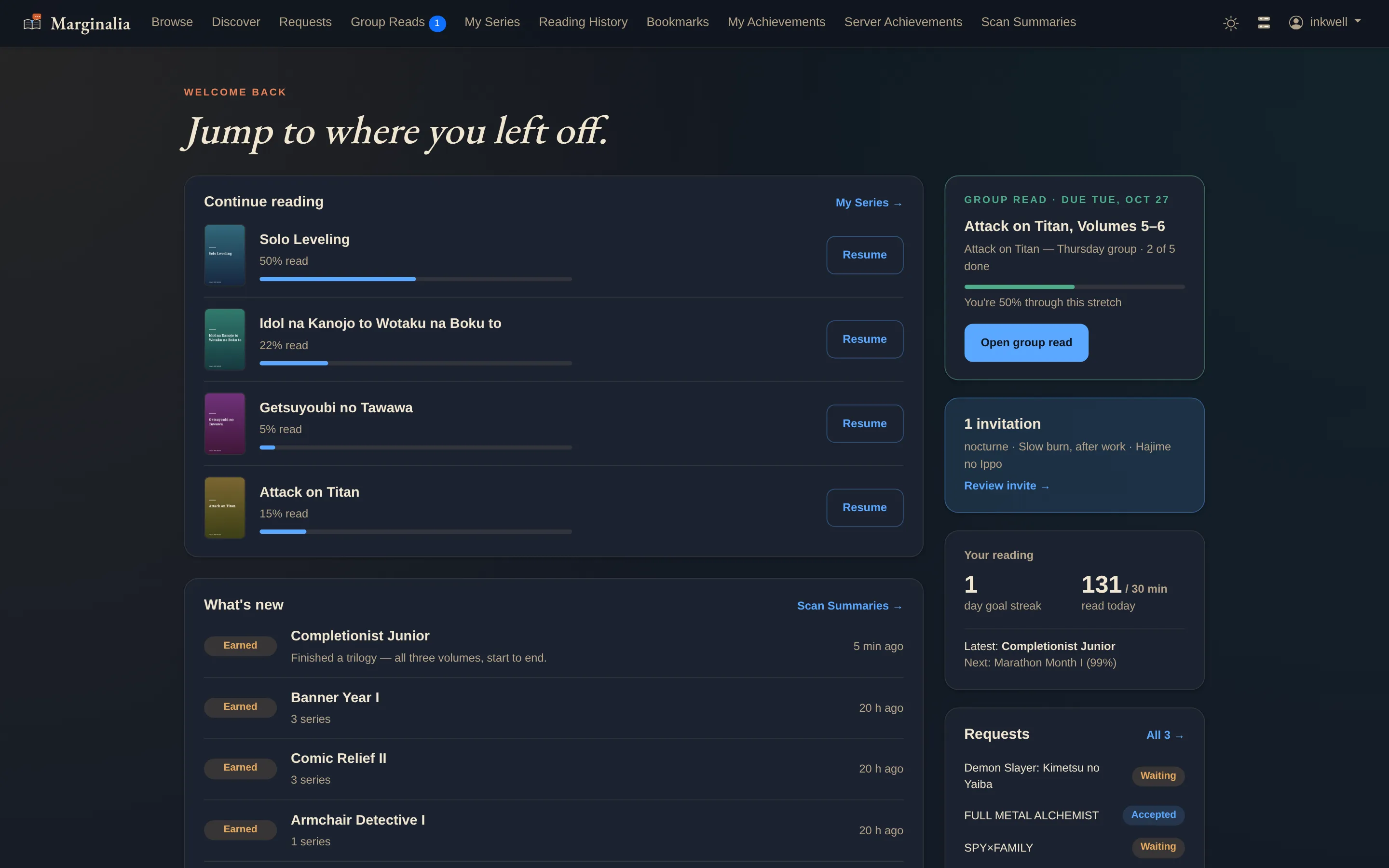
Signing in lands you on a dashboard rather than a grid of links. The left column is what you are in the middle of — each series with how far along you are — and a What's newfeed covering the last two weeks: new chapters in series you have started or watch, updates on your requests, new posts in your group reads, and achievements you have earned.
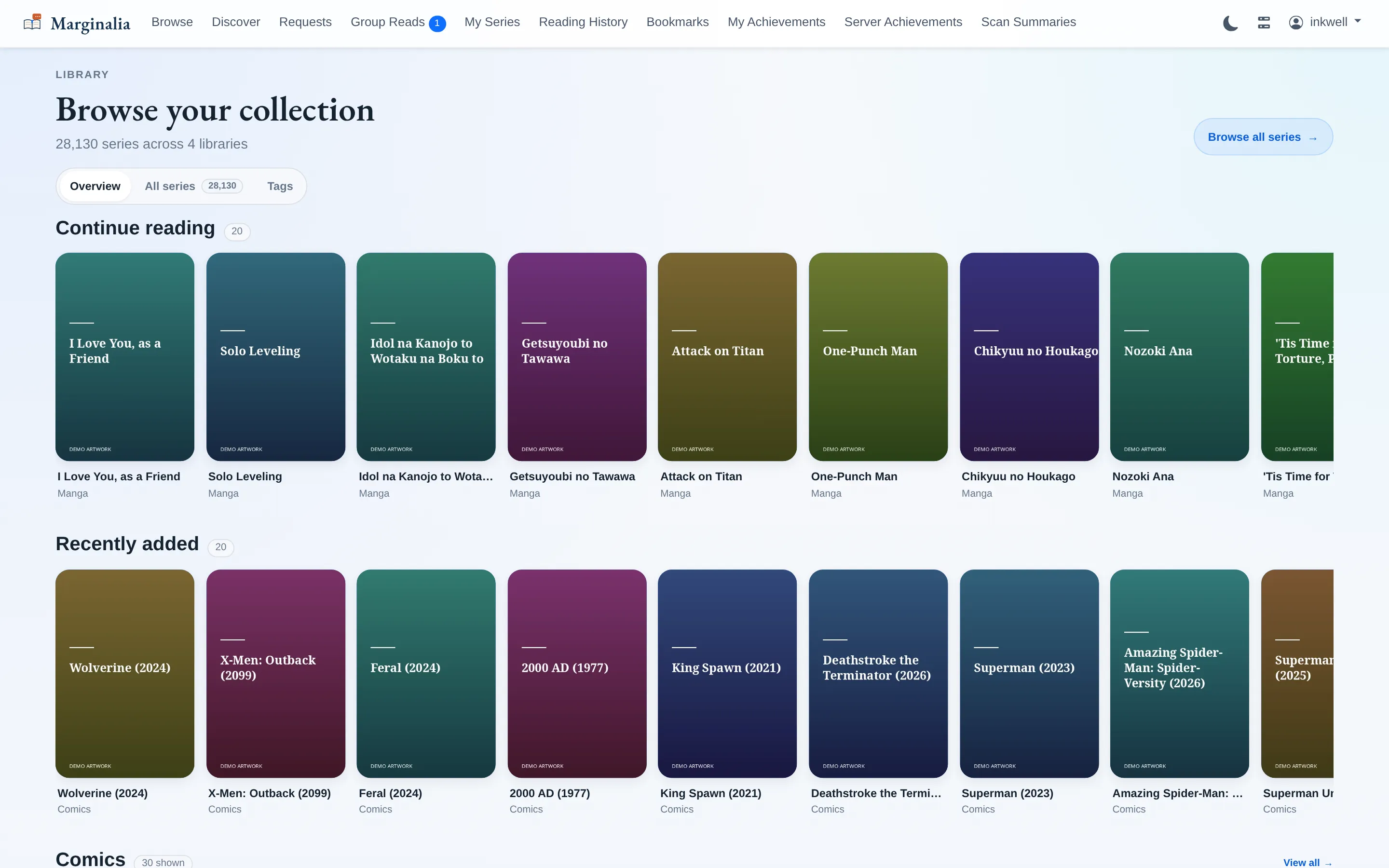
3. Browse
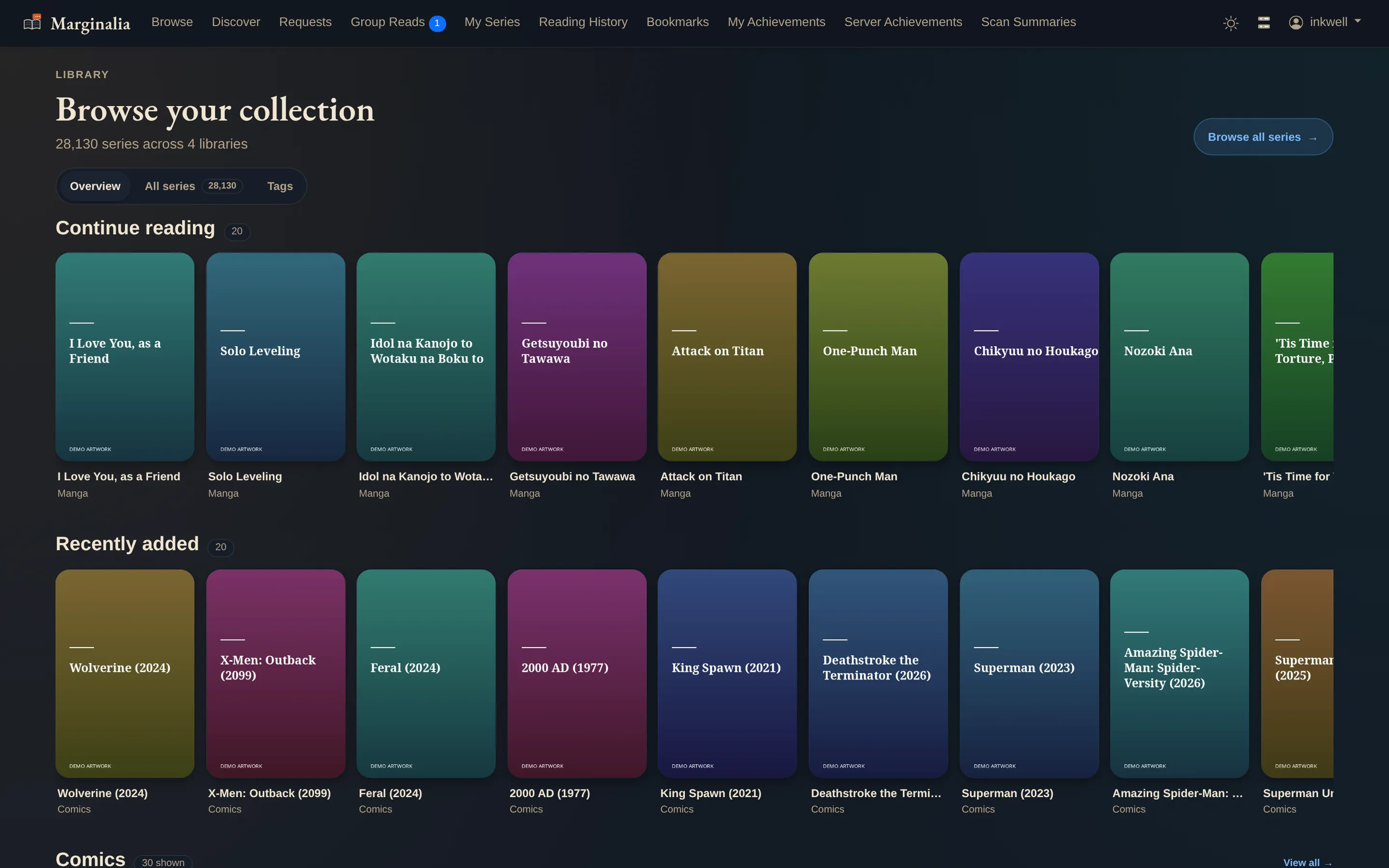
Browse is your whole collection, shelved rather than dumped into one flat grid. Continue reading comes first, then recently added, then a shelf per library. Card sizes vary by shelf on purpose, so the page has a shape instead of being a wall.
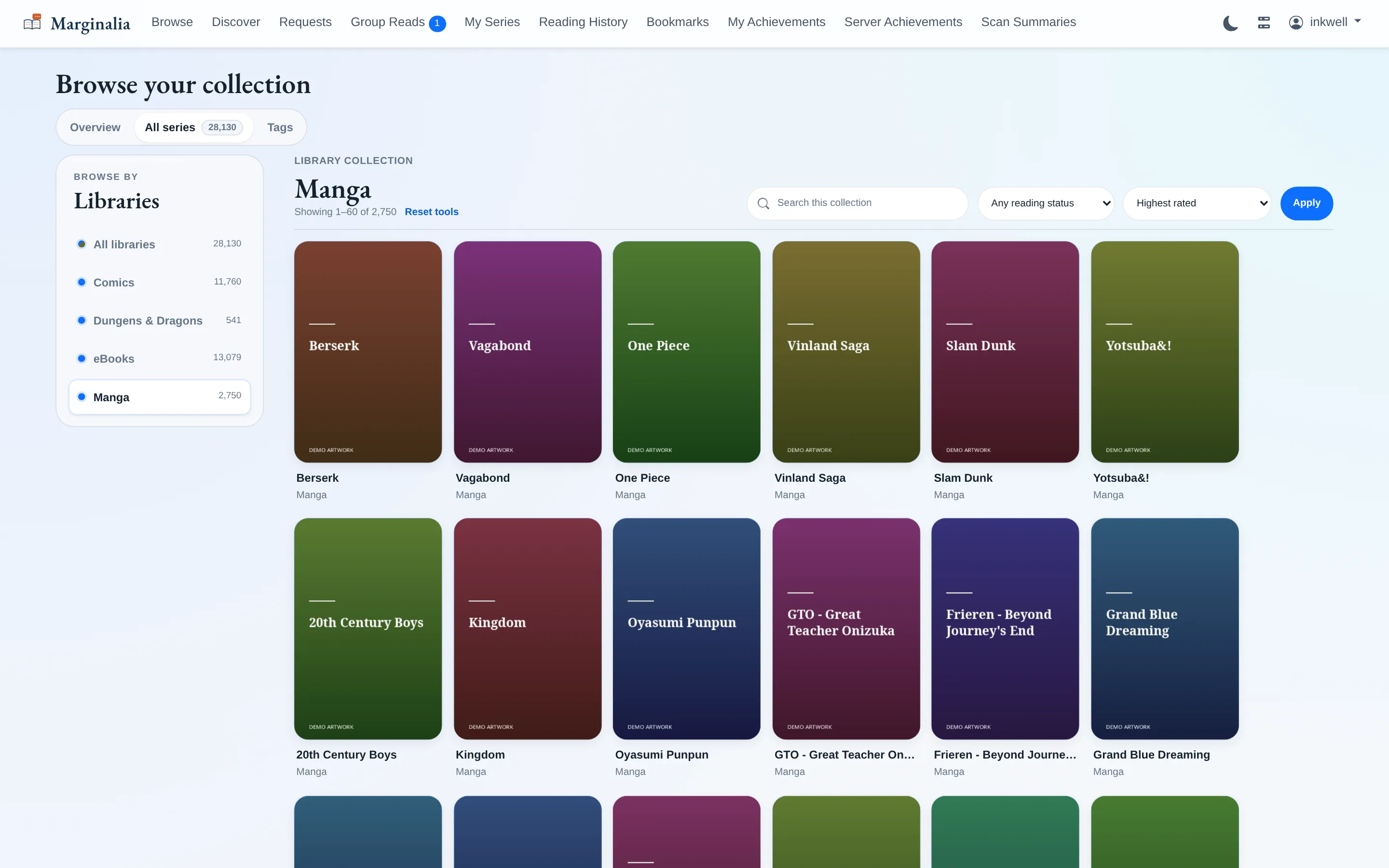
Shelves are for picking something up again. When you would rather just wander, the All series tab drops the shelving and gives you one library at a time.
4. Tag Browser
The Tags view turns everything Kavita and MangaBaka know about your library into a browsable index — genres, activities, demographics, character archetypes — each with a count of how many series you actually own under it.
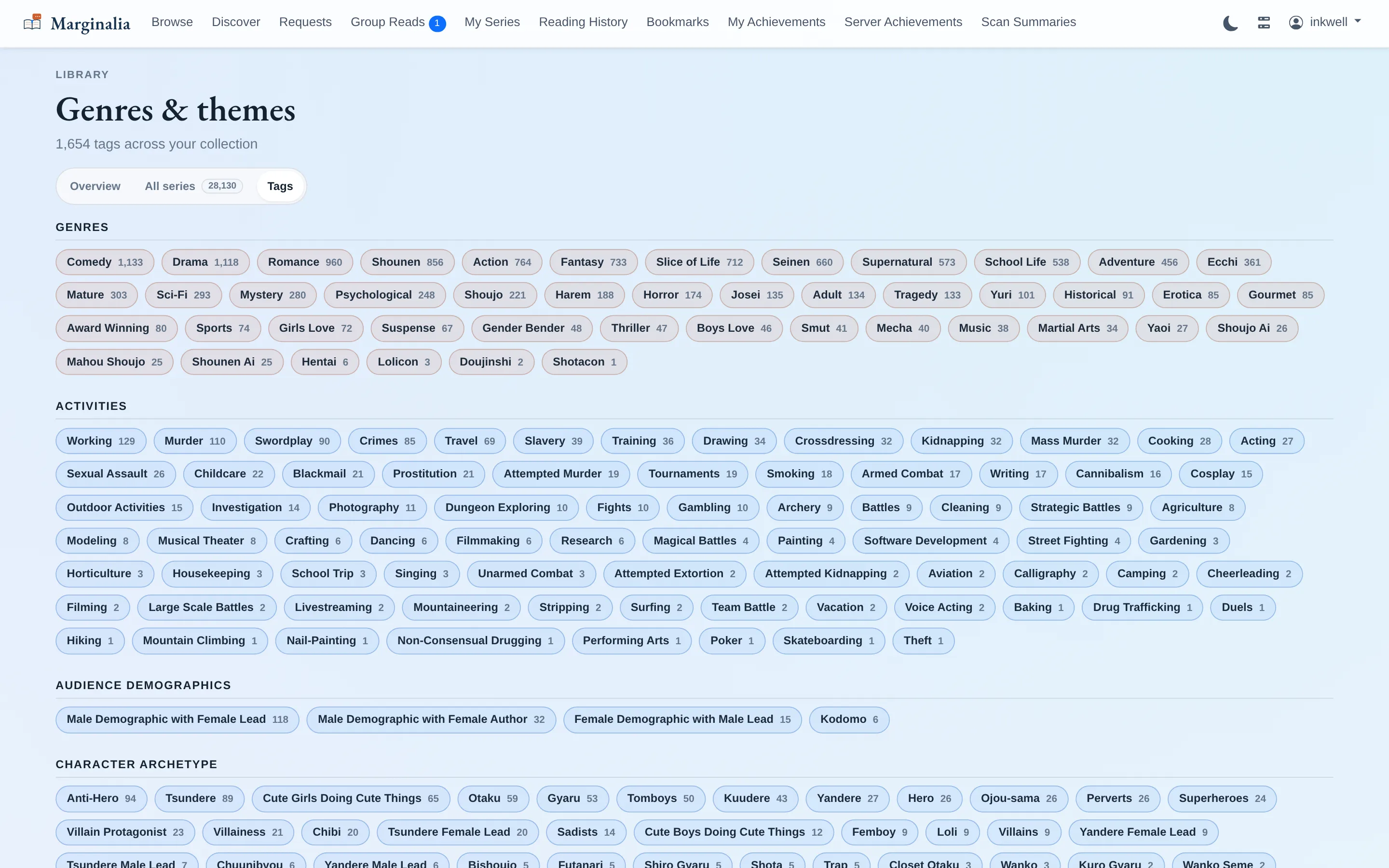
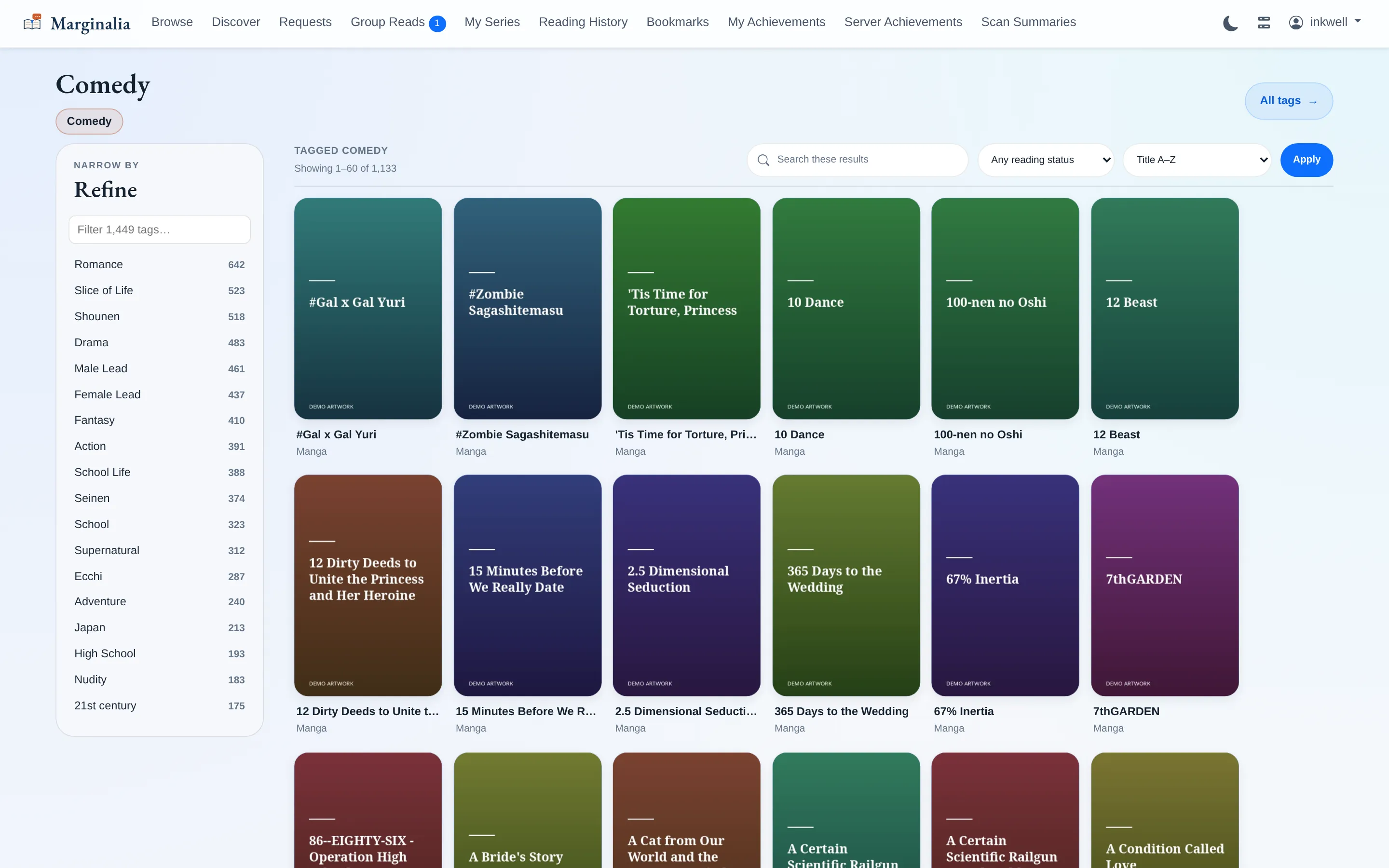
Picking one drills through to just those series, and tags combine — so you can narrow to the intersection rather than starting over from a single-tag list.
5. The series page
Everything known about one series in a single view: your progress, the metadata Marginalia matched from MangaBaka, community ratings, credits, and where it sits in the catalogue's popularity ranking.
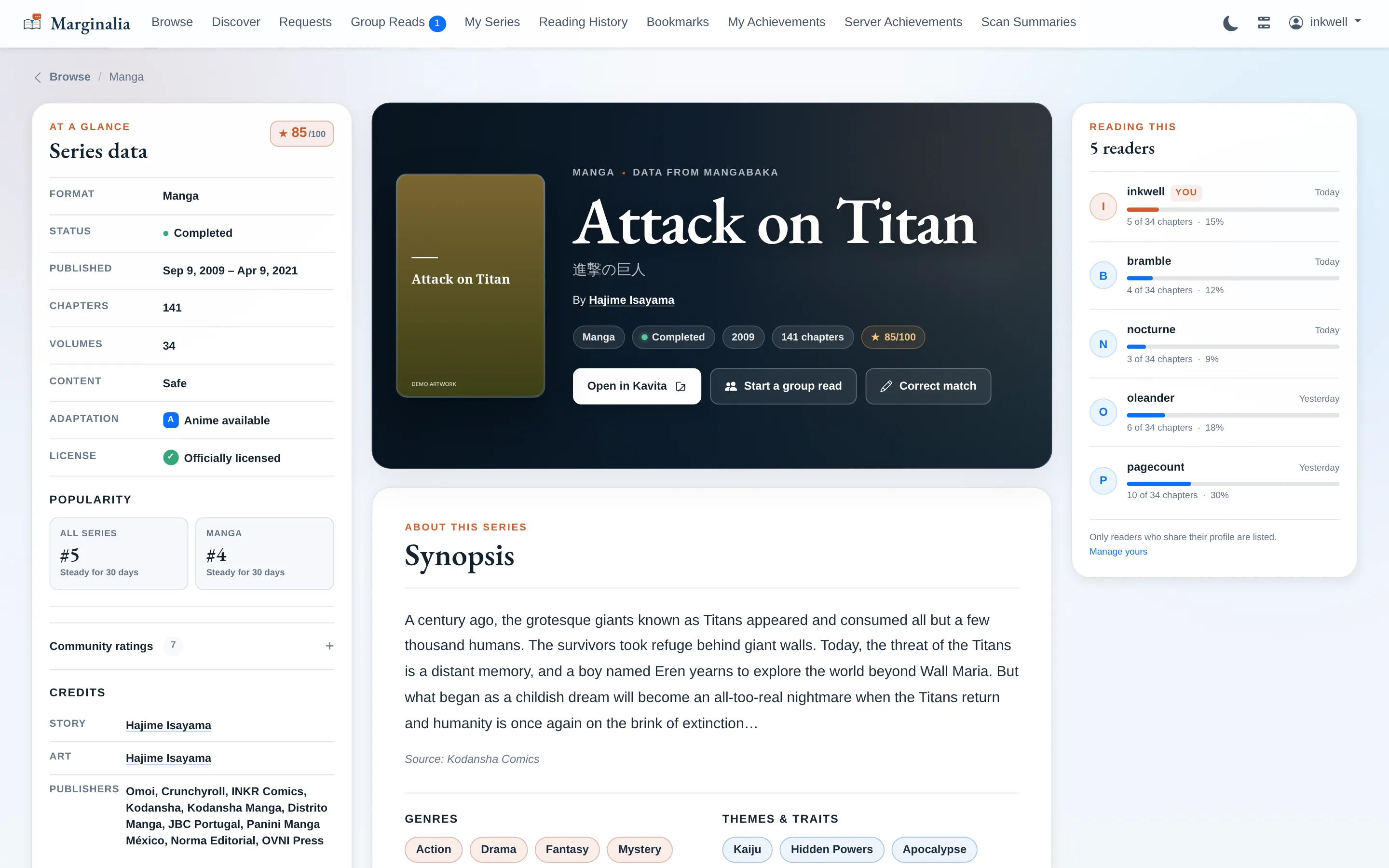
The Reading this column only lists readers whose profile is public; if yours is private, you still see your own row and nobody else does. Start a group readin the hero is the way into section 10.
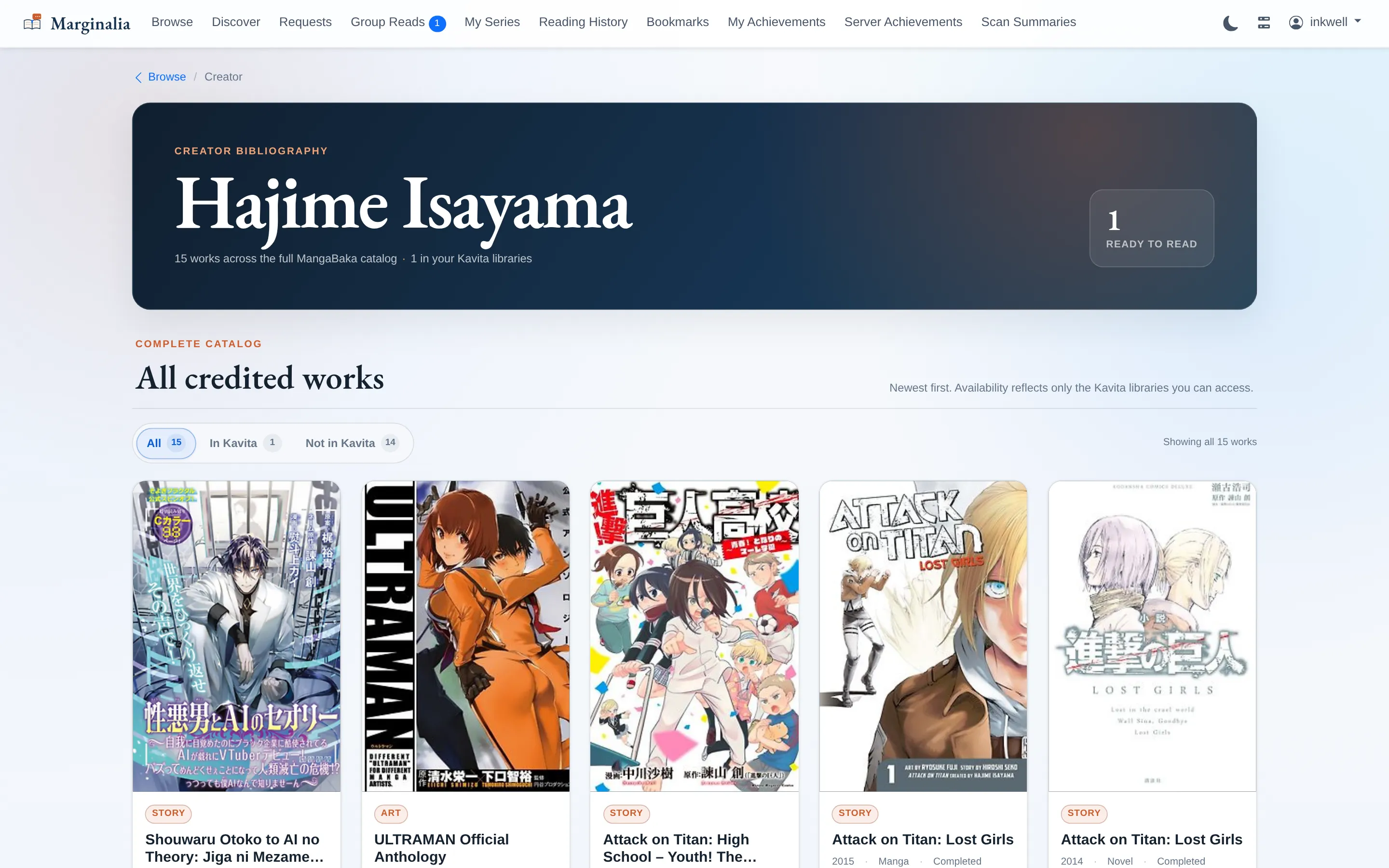
Creator names are links. Following one gives you their full bibliography — every credited work in the metadata catalogue, with the ones already sitting on your server marked as such.
6. Following a series
This is the loop the app is built around. My Series lists everything you have in progress; the Watch toggle on a row is the whole subscription mechanism.
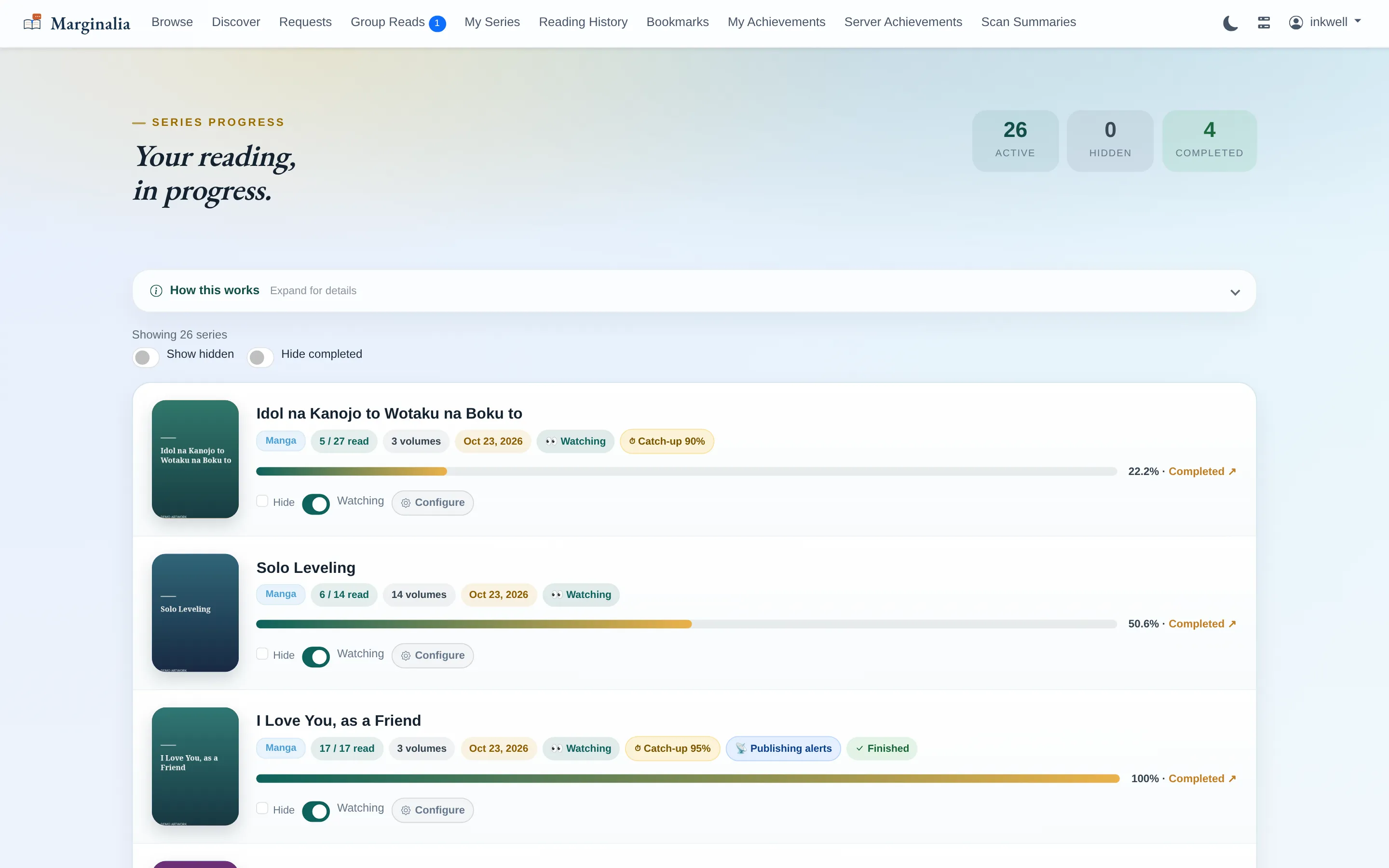
Catch-up reminders are the setting worth understanding. Setting a threshold records where you are now and then says nothing. It pings you later, once enough new chapters have landed that your completion has fallen back to that number. It is for series you would rather binge than read one chapter at a time.
Auto-watch saves the bookkeeping: turn it on and any series you start reading is added to the watchlist for you, with new-chapter alerts, publishing-status alerts, or both. Series you already watch, or deliberately un-watched, are left alone.
7. Deciding what reaches you
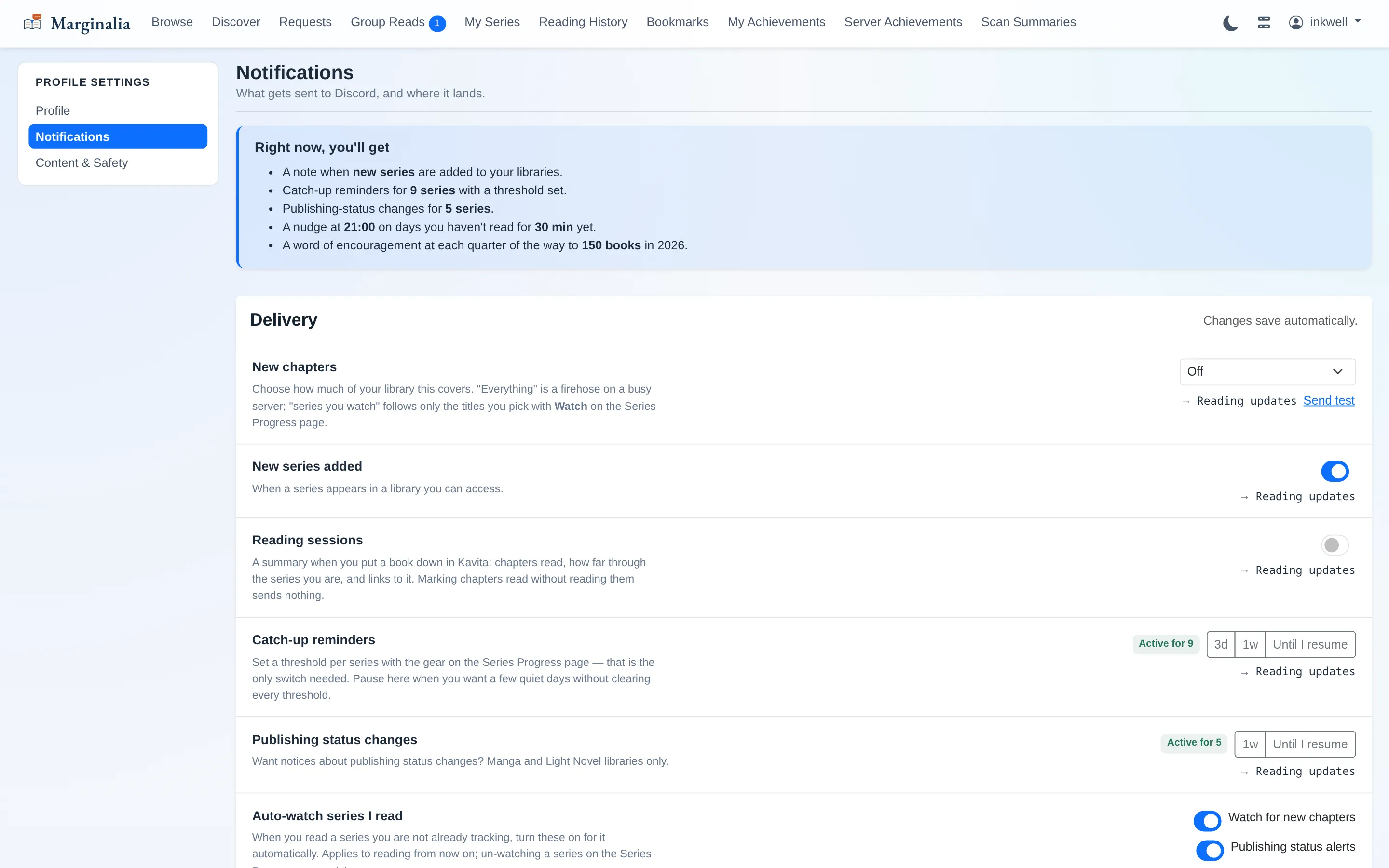
Notification settings open with a plain-English summary of what you are currently signed up for, so you never have to reverse-engineer it from a column of switches.
8. Finding the next thing
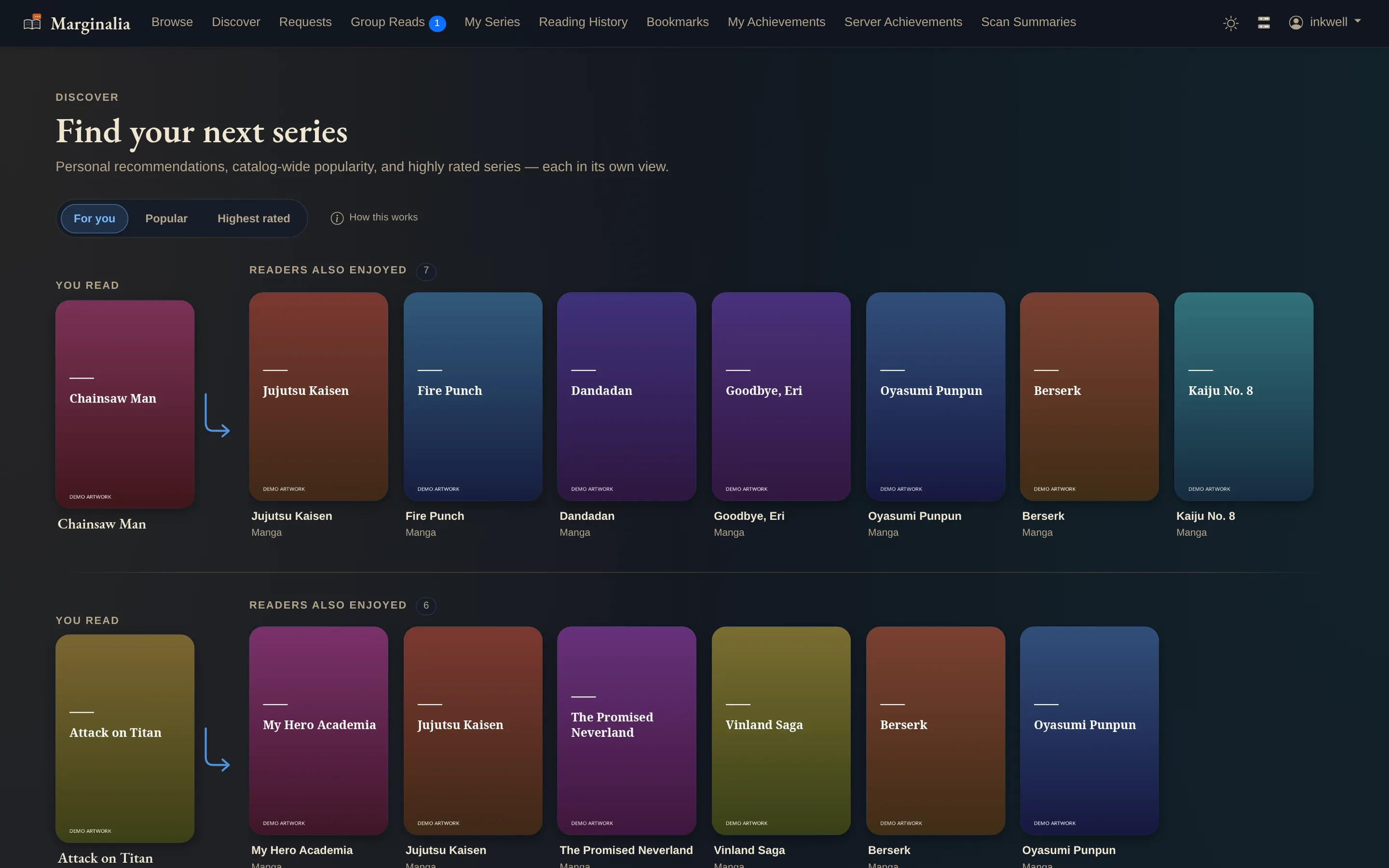
Discover works from what you have actually been reading. Each row starts from one of your series and shows what MangaBaka readers of that series also enjoyed — then filters the result down to series already on this server that you have not started. The series that get listed here are refreshed every 24 hours.
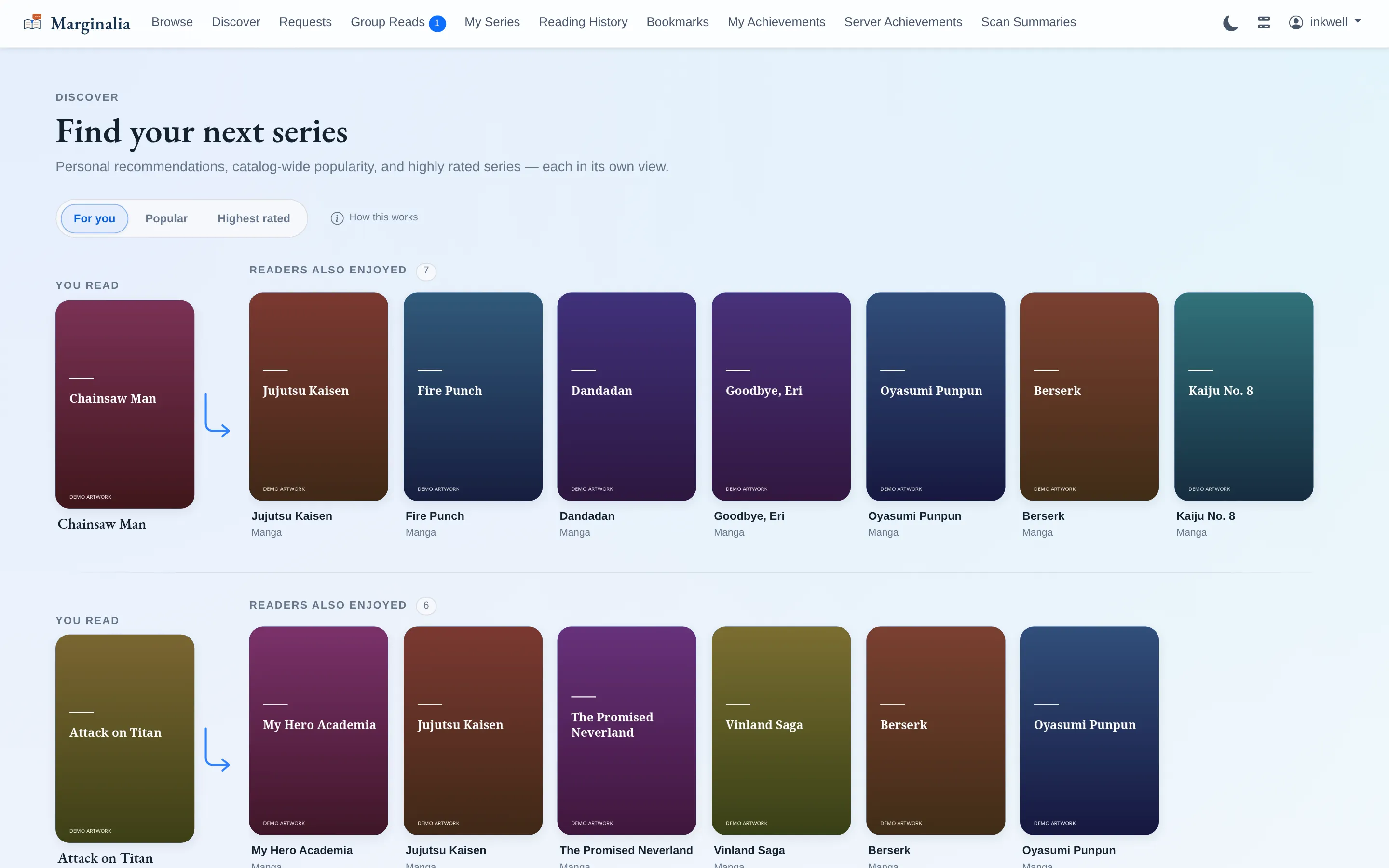
What leaves your server: the recommendation lookups are made by the server against MangaBaka and carry manga IDs only — never your account or your reading. Covers and titles on this page come from your own library, so your browser never talks to MangaBaka at all. An admin can switch the whole hub off.
9. Asking for what is missing
Requests is how you ask the admin for a series the server does not have. You pick the exact edition and the library it should land in — never a bare title, because "Solo Leveling" is a manhwa and a light novel, and those are different requests.
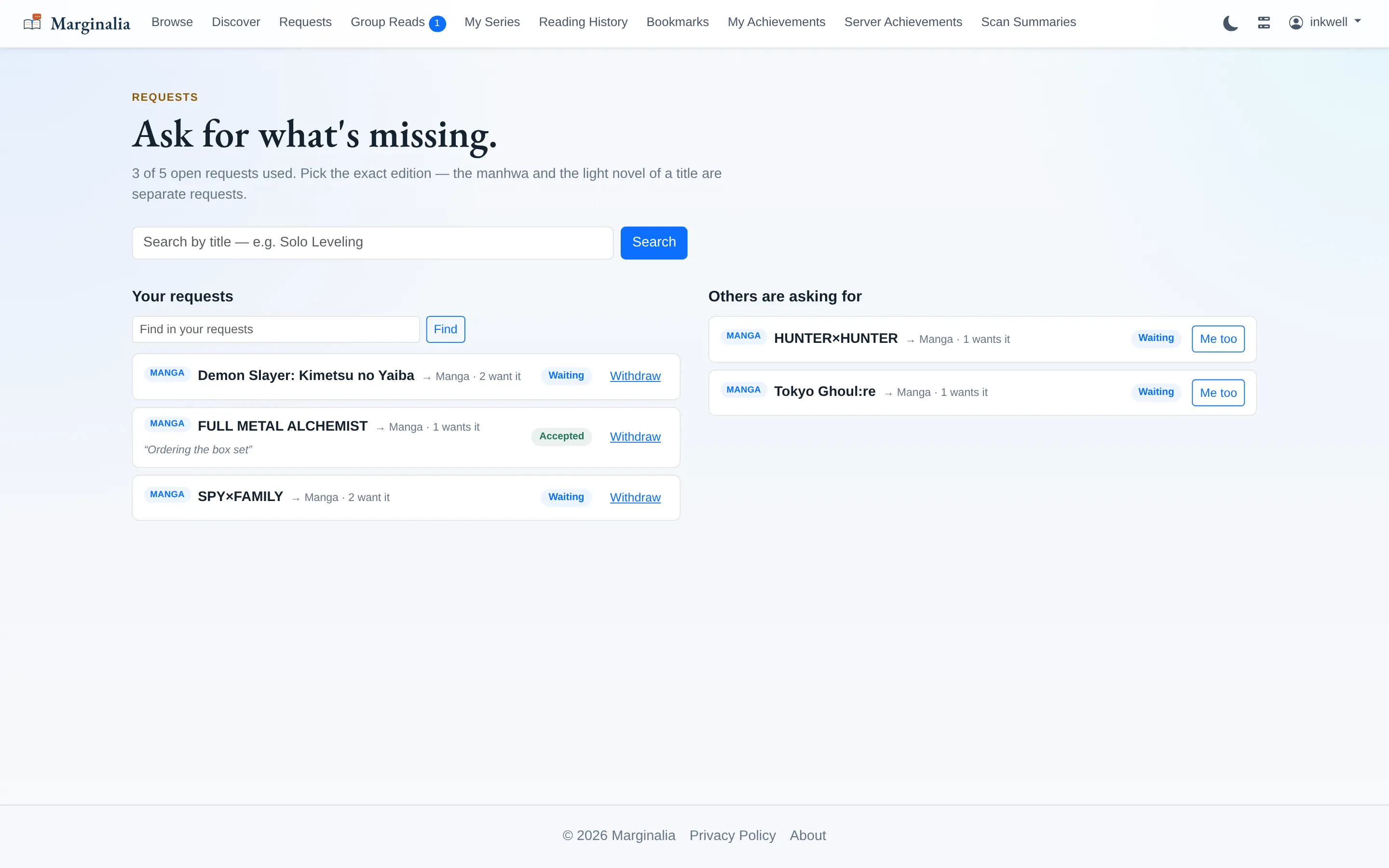
You do not have to come back and check. When the series turns up in the library you asked for — however it got there — everyone who asked for it gets told.
10. Reading together
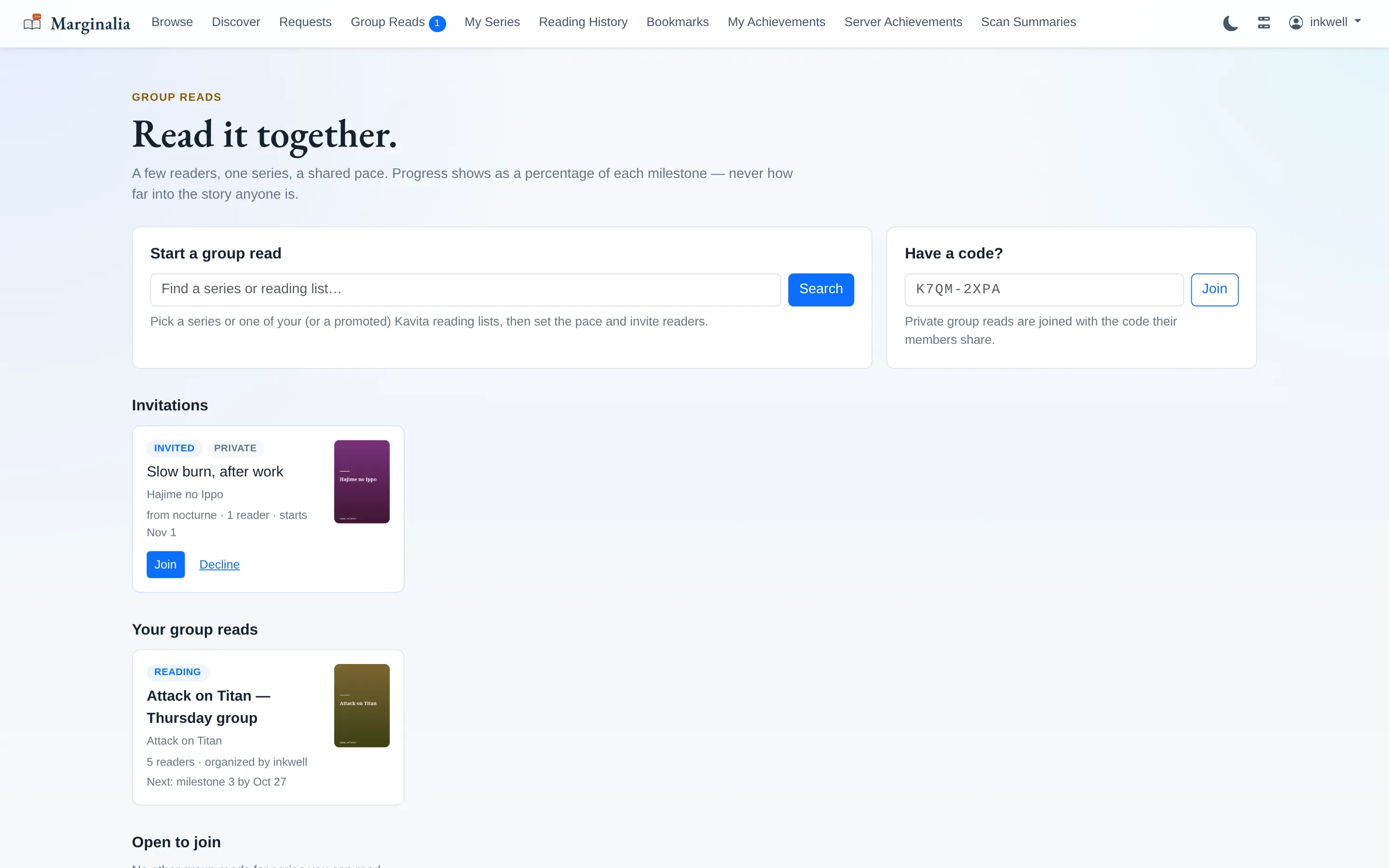
Group reads are a few readers, one series (or a Kavita reading list), and a shared schedule. Start one from a series page or from here; clubs can be public, or private behind an invite or a join code.
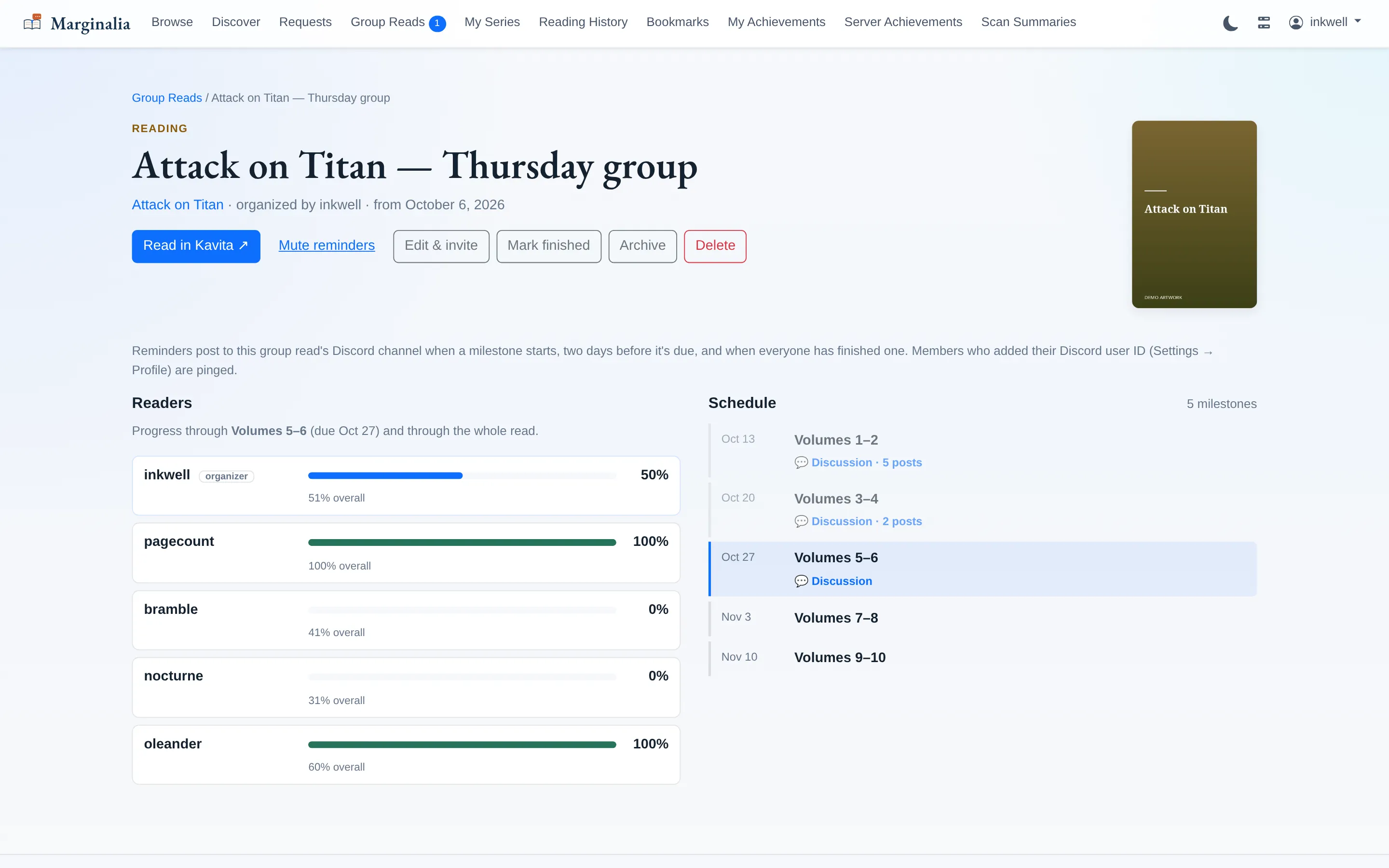
There is no check-in button. Progress is read straight from Kavita, so the board is always current — and it only shows percentages, never which chapter somebody is on.
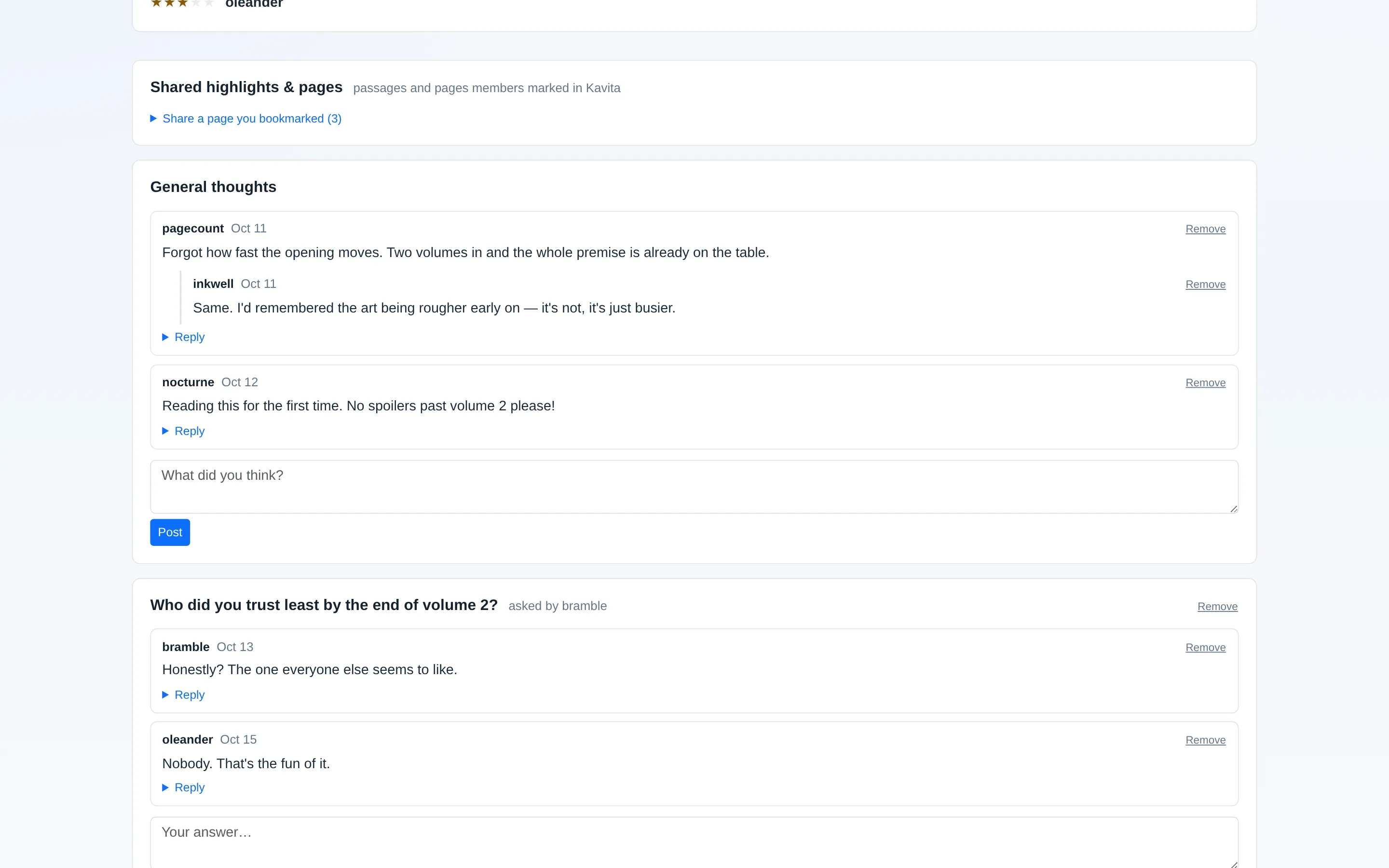
Every stretch has its own discussion: general thoughts, questions members ask, a one-line quick take with a rating, and highlights or bookmarked pages you made in Kavita, attached straight from your own account.
11. What you have already read
Reading history is week by week, paginated backwards, counting chapters and pages per series. It makes "how much did I actually read last month" a question with an answer.
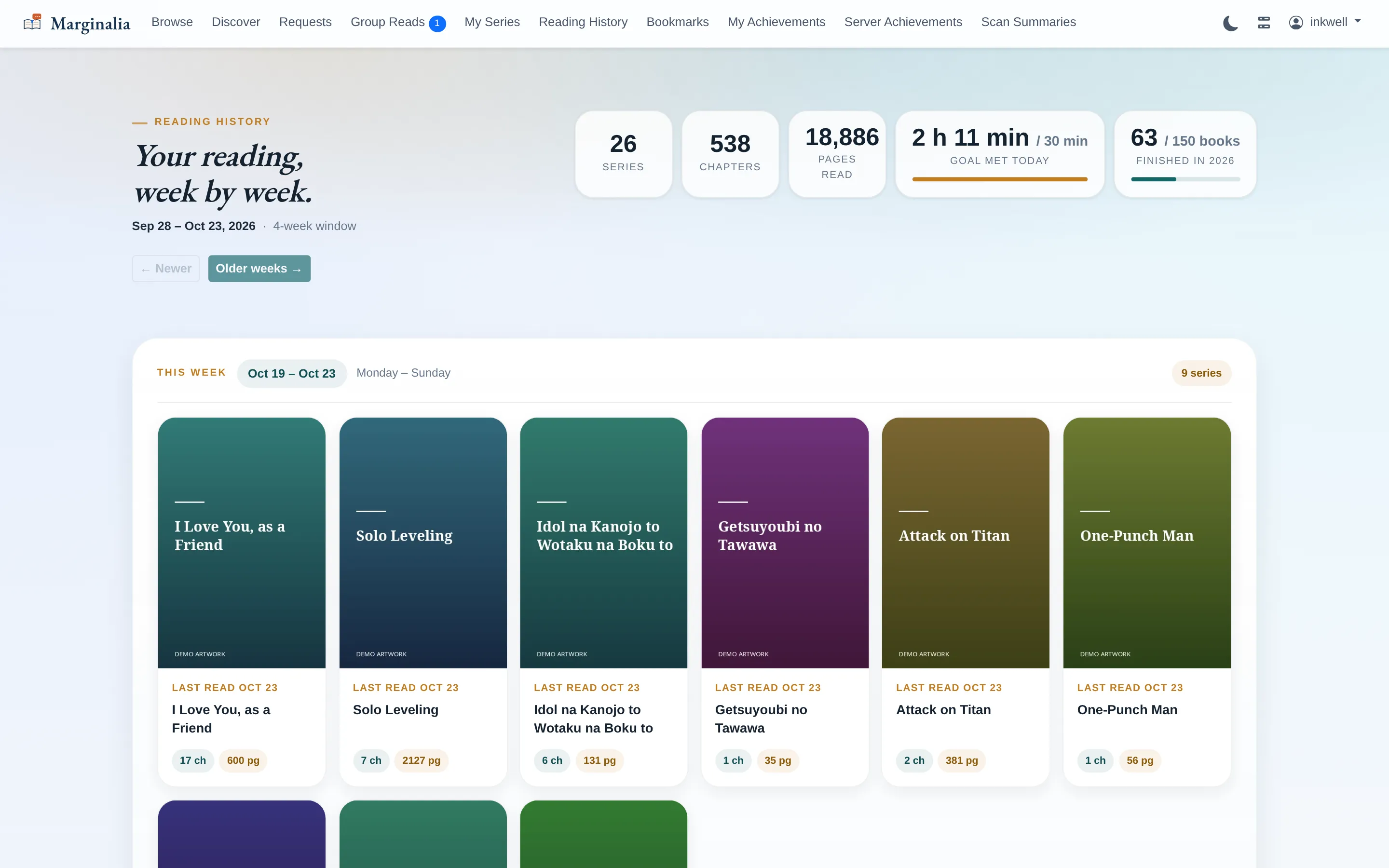
Both goals are set under notification settings. Time is measured from Kavita's own reading sessions, so it counts reading rather than marking things read, in your own time zone — and you can ask for a nudge at a set time of day if you are still short. A book is a volume you finish; in book and light novel libraries, each finished file counts.
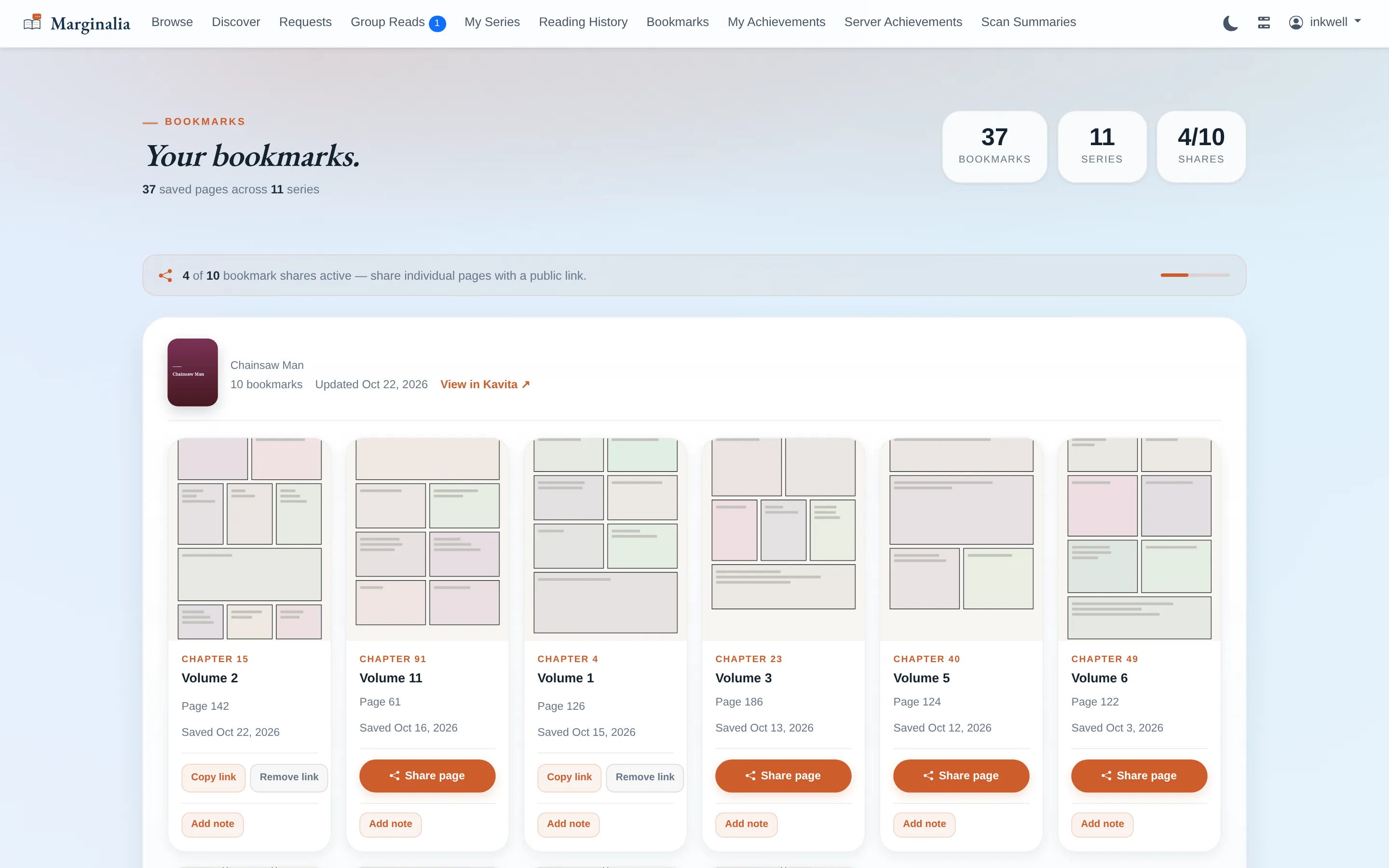
Bookmarks is the gallery of pages you saved while reading — grouped by series, each reopening at full size, each able to carry a Markdown note.
12. Achievements
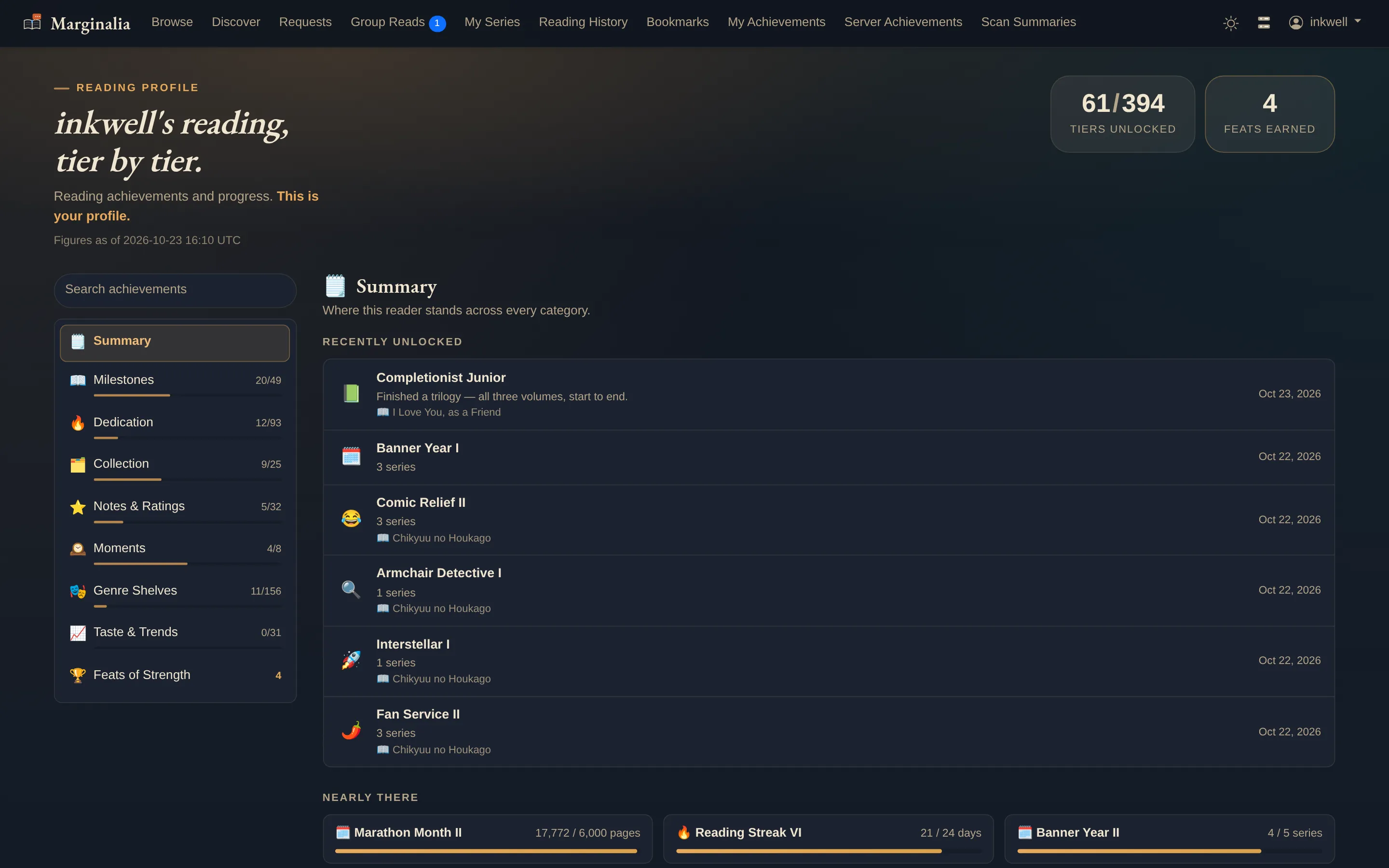
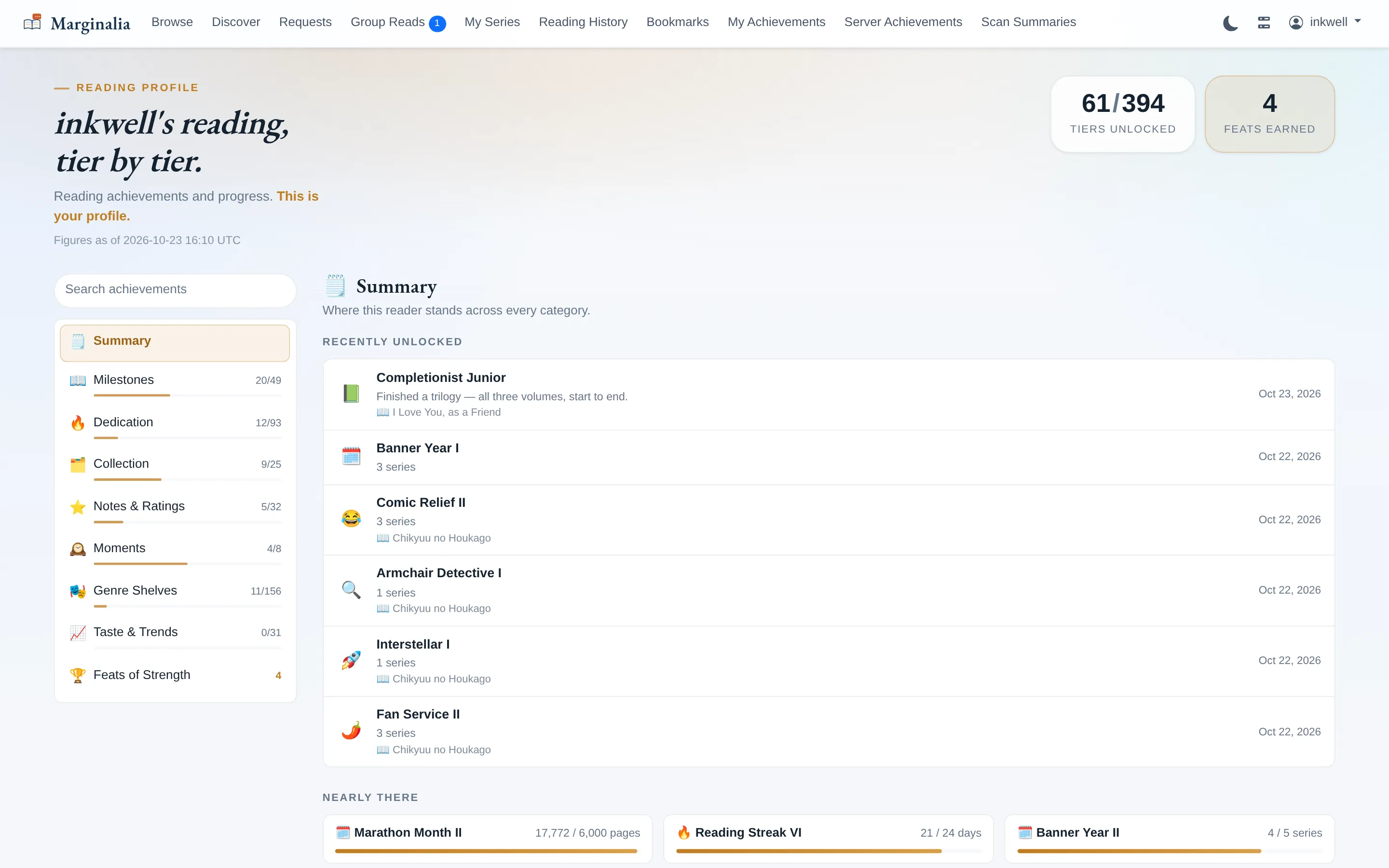
Close to 400 tiers across the profile set, in tiered families rather than one-shot badges. Each card shows the tier you are on, the next threshold, and how far along you are — so a card is a progress bar, not a lottery ticket.
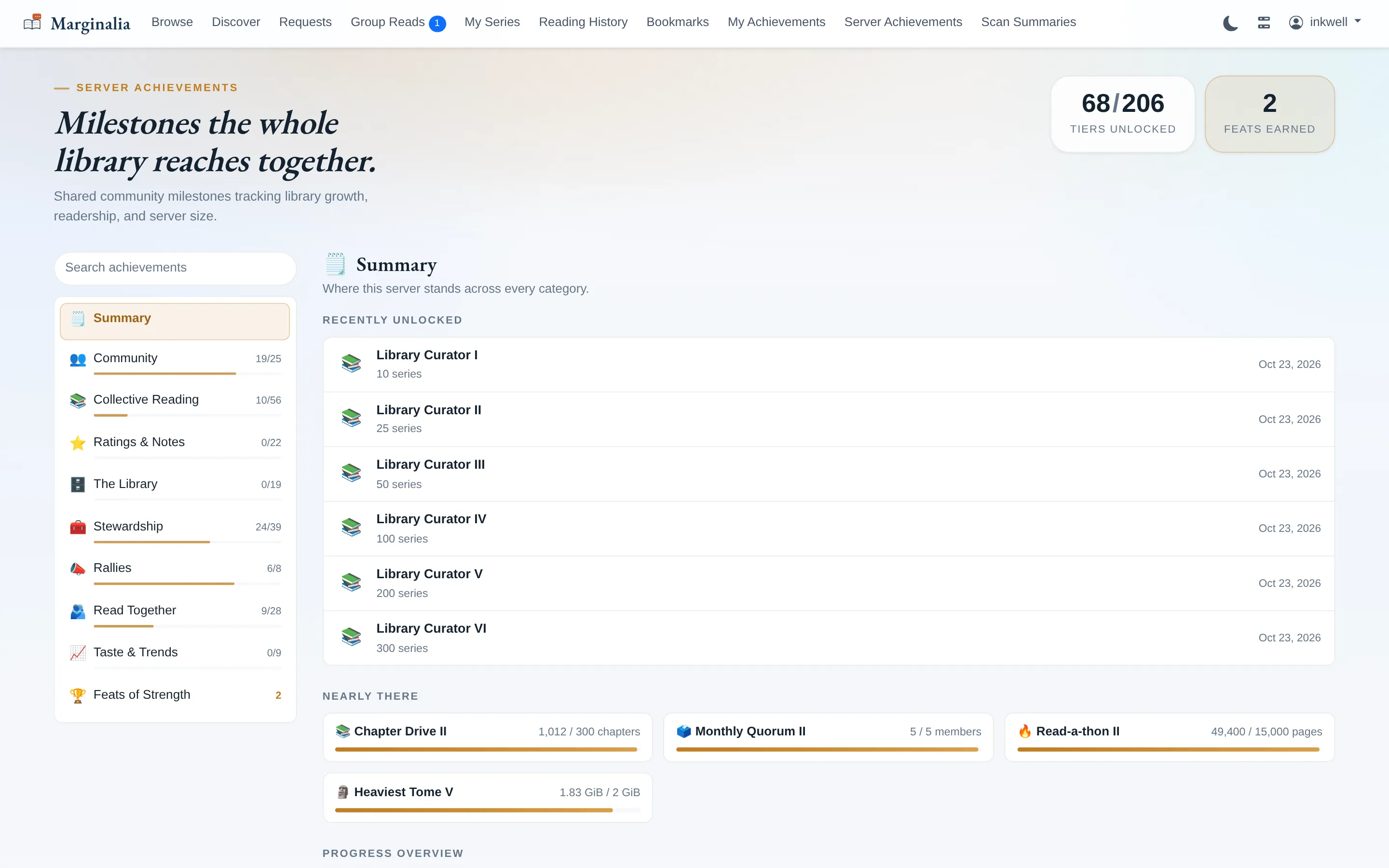
If more than one person reads off the server, there is a shared set everyone contributes to.
13. Year in Review
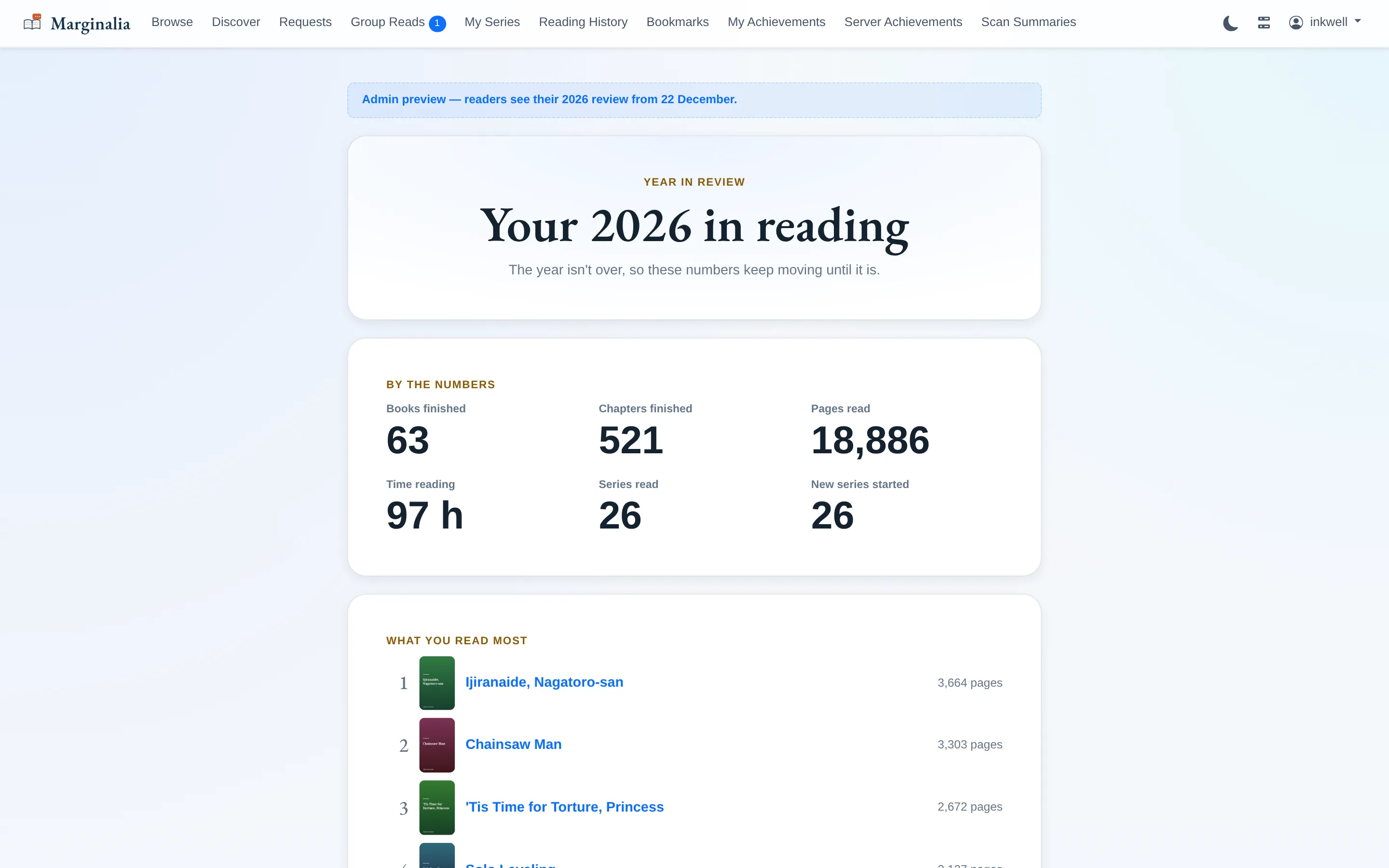
Each December you get a look back at your reading year — books and chapters finished, pages, time spent, new series started, and what you read most. It opens on 22 December in your own time zone; earlier years are always available from your profile settings, and are rebuilt from your Kavita history if you were reading before Marginalia was installed.
14. Two settings worth knowing about
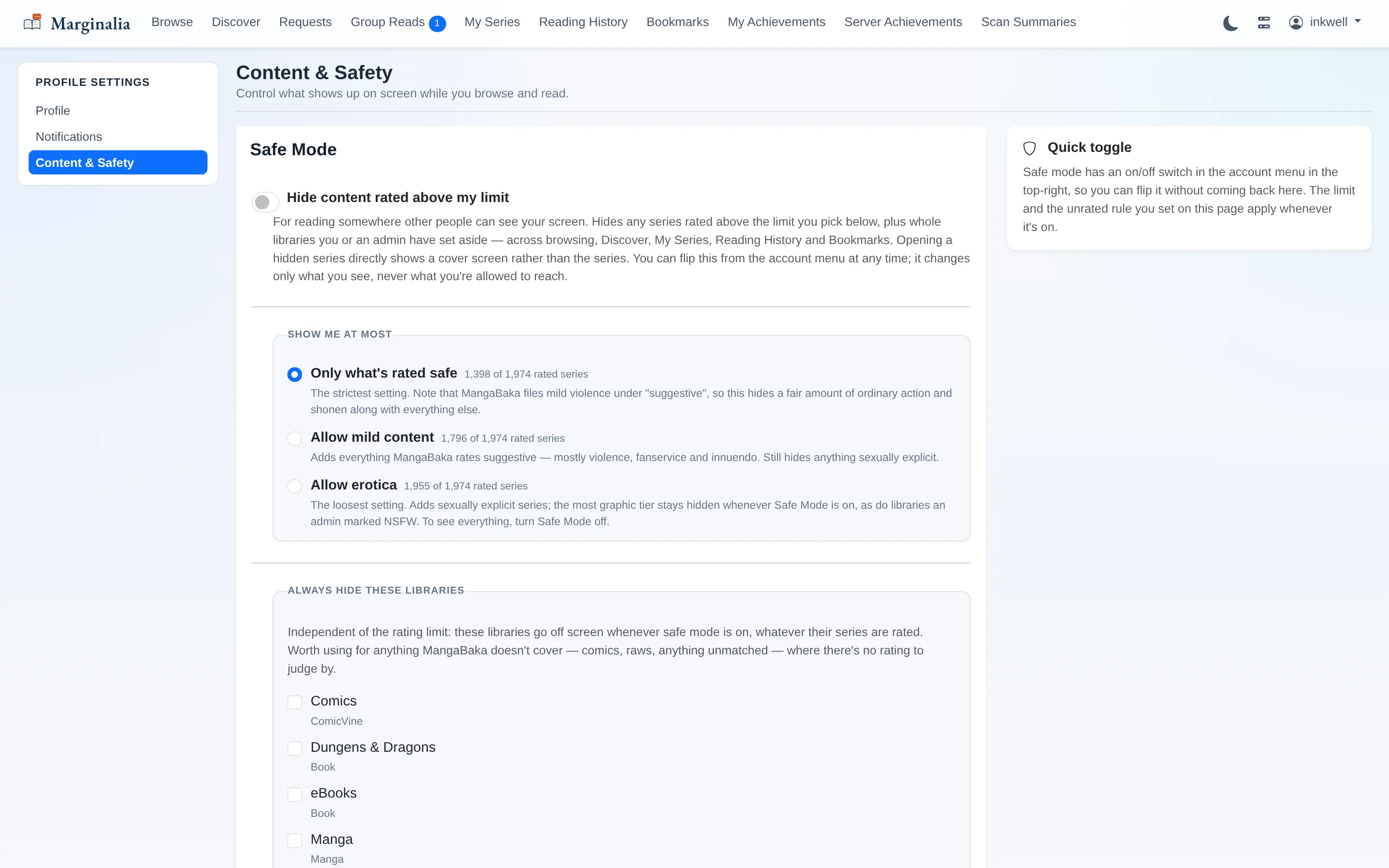
Safe Mode is for reading somewhere other people can see your screen. You pick a content ceiling and optionally whole libraries to hide, and it applies across browsing, Discover, My Series, history and bookmarks.
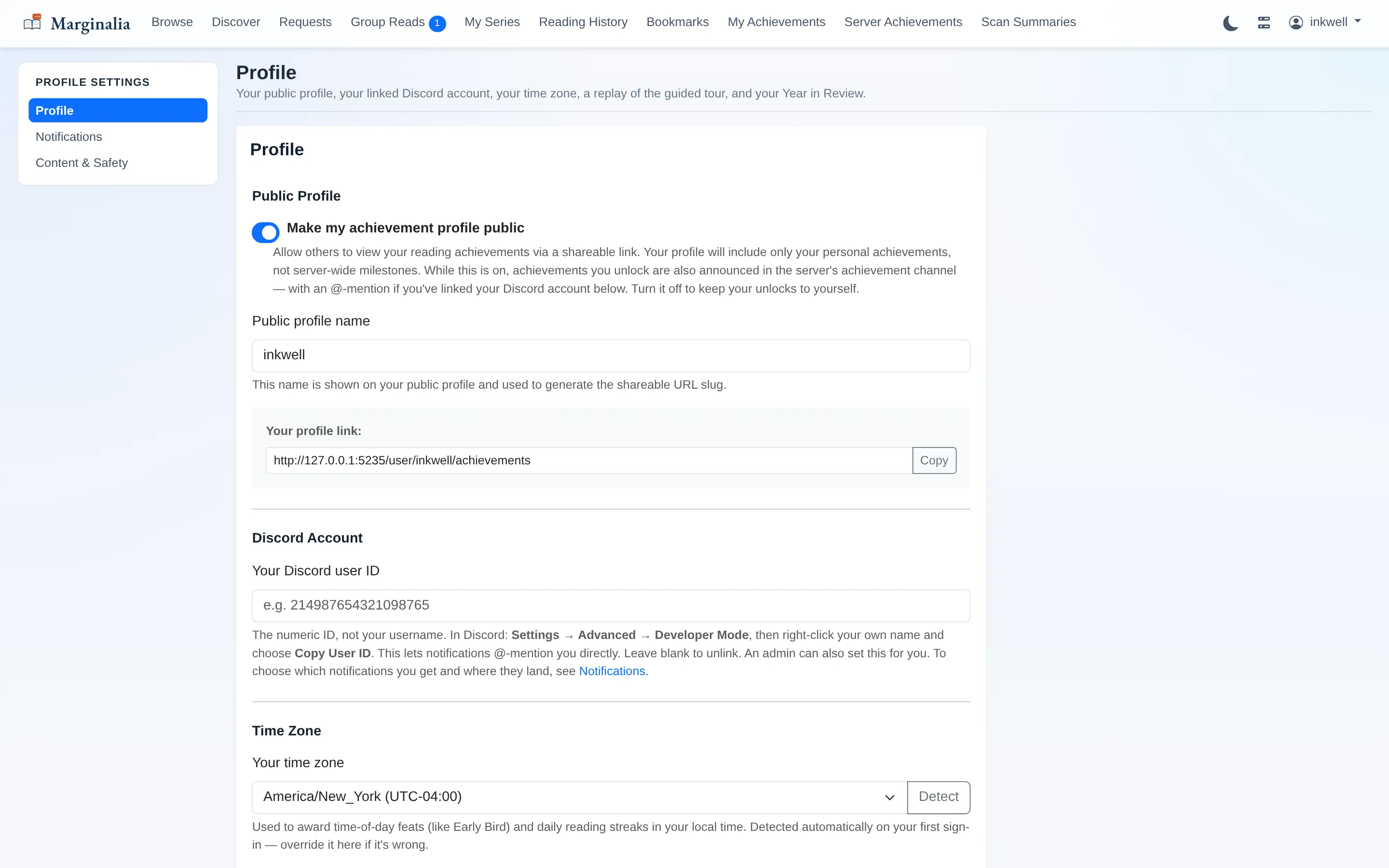
The profile page holds the rest: your public profile, the Discord ID that lets notifications @-mention you, the timezone your streaks and time-of-day feats are judged in, and links to your past Years in Review.
Dark mode
Not a filter laid over the light theme — the palette is remapped, and it is the same set of design tokens either way. Toggled from the navbar, remembered per browser, with no flash of the wrong theme on load.